

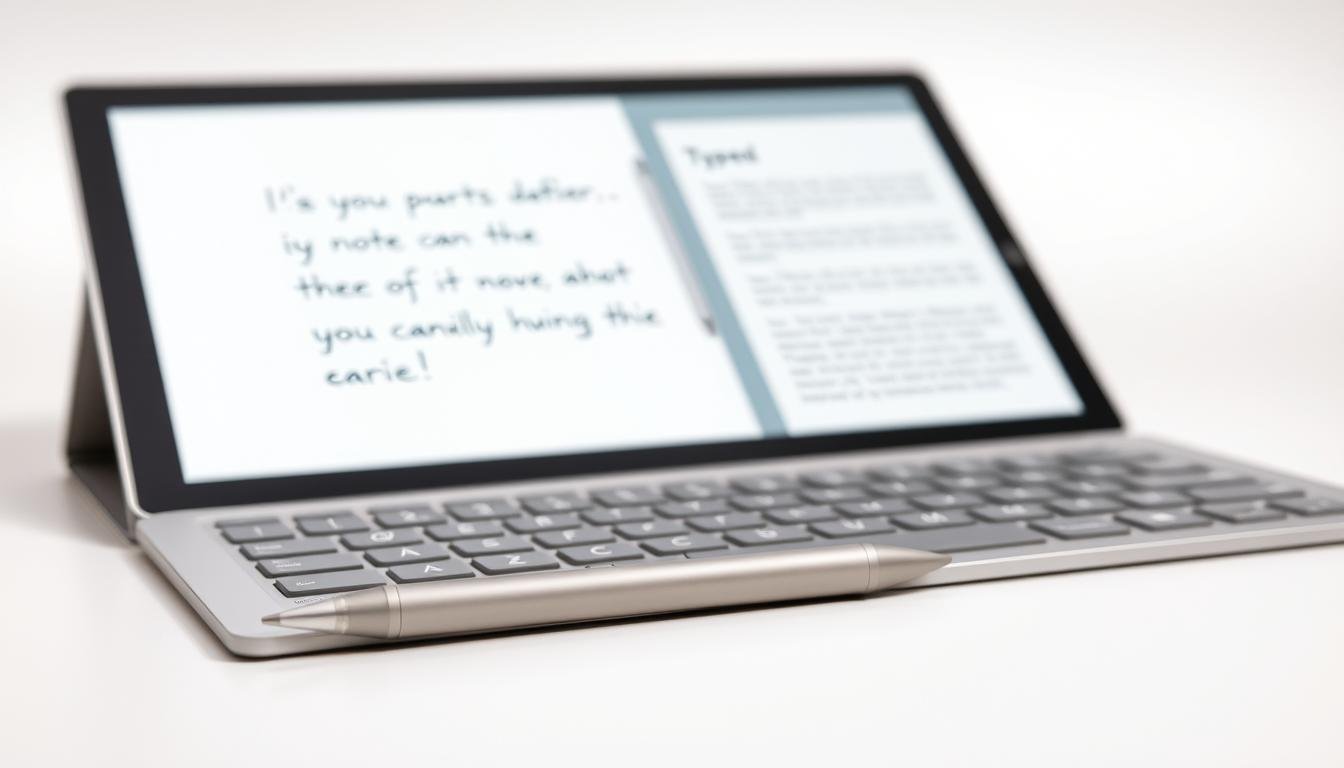
Are you getting the most out of your Surface Pro? The Surface Pen makes a big difference in how you take notes. You might wonder, is handwriting or typing better?
Studies show that handwriting notes help you remember and understand better. The Surface Pro is perfect for trying out handwritten notes. It works great with the Surface Pen.
Key Takeaways
- The effectiveness of handwriting vs typing notes on Surface Pro devices.
- The benefits of using the Surface Pen for note-taking.
- How handwriting notes can improve retention and understanding.
- The features of the Surface Pro that make it suitable for note-taking.
- The comparison between handwriting and typing notes.
The Advantages of Handwriting Notes
Writing notes by hand has many benefits that can make learning better. It helps people remember information better and makes notes more personal.
Improved Memory Retention
Studies show that writing notes down helps remember them better. A study on PMC found that writing information down strengthens memory. This is because it combines physical and mental actions that help keep information in mind.
Key benefits of improved memory retention through handwriting include:
- Better recall of key concepts
- Enhanced ability to connect new information to existing knowledge
- Improved performance in exams and assessments
Customization and Personalization
Handwriting notes also lets you make them your own. You can use colors, symbols, and layouts to make them interesting. This is great when using a digital pen note-taking app or the best app for handwriting notes. It lets you tailor your notes to fit your needs.
| Customization Feature | Benefit |
|---|---|
| Color-coding | Visual differentiation between topics |
| Symbols and icons | Quick identification of key concepts |
| Layout variation | Enhanced organization and structure |
Using these features, you can make a note-taking system that fits your learning style. Whether you use a notebook or a digital tool, customizing your notes can greatly improve your learning experience.
The Disadvantages of Typing Notes on Laptops
Laptops make note-taking easy, but they also bring distractions. Typing notes on laptops is common. Yet, it’s important to think about the downsides.
Distractions and Multitasking
Laptops can distract a lot, with notifications, email, and social media. Students typing notes might also check the internet or chat with friends. This split focus can make it hard to pay attention to what’s being taught.
Multitasking while typing notes can make it hard to understand and remember information. Studies show that laptop users do worse on tests than those who write notes by hand.
Lack of Engagement and Retention
Typing notes on laptops can make students less engaged. They often try to write down everything exactly as it’s said. This can lead to a shallow understanding of the material.
On the other hand, handwritten notes help students connect more deeply with the material. They summarize and paraphrase in their own words. For those looking for alternatives, exploring OneNote alternatives for handwritten notes can be helpful.
Exploring Note-Taking Apps for Surface Pro
The Surface Pro is great for note-taking because it works with many apps. You can pick the app that fits your style, whether you like writing or typing.
OneNote and Apple Notes
OneNote is a top choice for Surface Pro users. It has lots of features and works well with Microsoft products. You can make notebooks, sections, and pages, and it supports handwritten notes too.
Apple Notes is simple and easy to use. It’s best for those who want a basic note-taking app. You can use it on the Surface Pro through the web or an iPad. It lets you write and type notes, and keeps them synced across Apple devices.
“OneNote is incredibly versatile, allowing me to organize my notes in a way that makes sense for my studies.” – Student Feedback
Notion and Other Alternatives
Notion is a customizable app that’s getting popular. It lets you create notes, databases, and boards. It’s great for both personal and work use.
GoodNotes and Simplenote are also good options. GoodNotes is known for its handwriting recognition and organization. Simplenote focuses on simple, searchable text notes.
| App | Handwriting Support | Organization Features | Cross-Platform Syncing |
|---|---|---|---|
| OneNote | Yes | Notebooks, Sections, Pages | Yes |
| Apple Notes | Yes | Folders, Tags | Yes (Apple devices) |
| Notion | Yes | Pages, Databases, Kanban Boards | Yes |
| GoodNotes | Yes | Notebooks, Templates | Yes |
| Simplenote | No | Tags, Pinning | Yes |
By trying out these apps, Surface Pro users can find the best tool for their needs.
Surface Pro Features for Enhanced Note-Taking
The Surface Pro has features that make note-taking better. Its technology is designed to help you take notes more efficiently.
Stylus Support and Palm Rejection
The Surface Pro’s stylus support is a key feature. It lets users write and draw with precision. The Surface Pen feels like a real pen, making writing easy.
The Surface Pro also has palm rejection technology. This tech ignores accidental touches on the screen. It helps reduce mistakes and makes writing smoother.
- Precision and accuracy with Surface Pen
- Palm rejection technology for reduced errors
- Natural writing experience
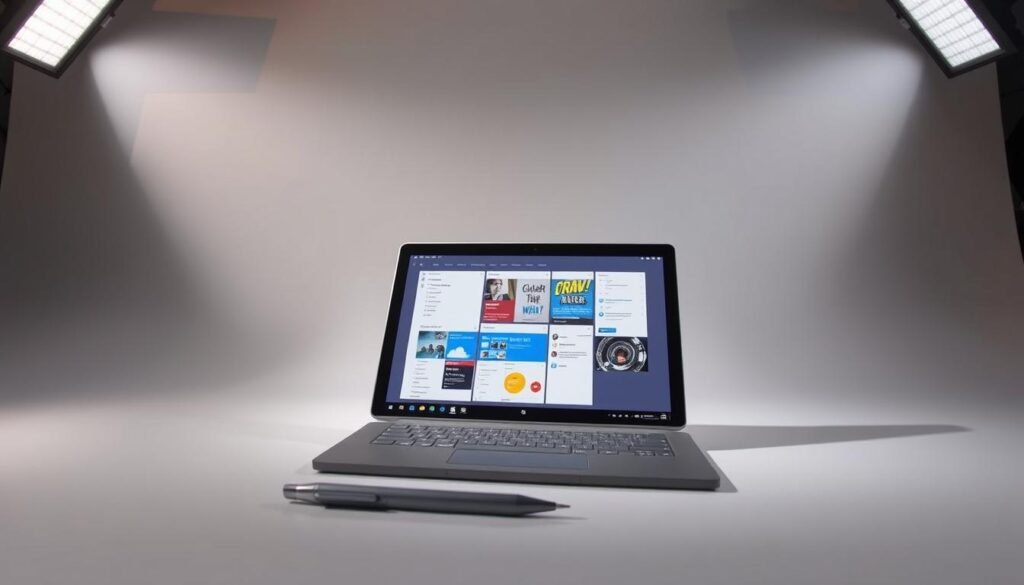
Multi-Tasking and Organization
The Surface Pro is great for multi-tasking and organization. You can easily switch between apps like OneNote and other tools. This makes organizing your notes and tasks simple.
- Efficient multi-tasking capabilities
- Seamless organization of notes and tasks
- Compatibility with various productivity tools
These features let users create a note-taking experience that fits their needs. Whether you’re a student or a professional, the Surface Pro can elevate your note-taking.
Popular Note-Taking Apps for Surface Pro
The Surface Pro is great for note-taking, with many apps to choose from. Think about what you need, like handwriting recognition and organization. Also, consider if it works well with other devices.
OneNote and Apple Notes
OneNote is a top pick for Surface Pro users. It has great handwriting recognition and lets you organize notes well. OneNote can turn handwritten notes into text, which is handy for typing fans.
Apple Notes is simple and works well for Apple users. It’s not as complex as OneNote but is easy to use and organize.
Notion and Other Alternatives
Notion is known for its flexibility and customization. It’s great for note-taking and managing projects. Its adaptability makes it a top choice for many users.
Simplenote is simple and minimalistic, while Evernote has advanced features like tagging. Each app has its own strengths, fitting different user needs.
| App | Handwriting Recognition | Organization Features | Cross-Platform Compatibility |
|---|---|---|---|
| OneNote | Excellent | Notebooks, Sections, Pages | Yes |
| Apple Notes | Good | Folders, Tags | Yes (Apple devices) |
| Notion | Good | Pages, Databases, Kanban Boards | Yes |
Choose a note-taking app based on what you value most. Whether it’s handwriting, organization, or compatibility, there’s an app for you.
User Preferences and Note-Taking Habits
User preferences greatly influence note-taking habits, whether it’s handwriting or typing. The best method depends on how well it fits an individual’s needs and preferences.
Student Perspectives
Students have different note-taking preferences. Some like handwriting notes for better retention and understanding. Emily Wilson, a college student, says, “Handwriting notes helps me engage more deeply with the material, making it easier to recall during exams.”
Others prefer typing notes for its speed and organization. David Lee, another college student, notes, “Typing allows me to keep up with the lecturer and organize my notes more efficiently.” The choice often depends on the student’s learning style and personal preference.
Professional Feedback
Professionals also have varied note-taking habits, influenced by their work. A Microsoft study found that digital pen users on Surface devices were more productive and organized. According to Microsoft’s insights, “The combination of digital and handwritten notes allows professionals to leverage the benefits of both worlds, improving their workflow.”
A quote from
“The best way to take notes is the way that works best for you.”
Many professionals agree, finding a method that complements their workflow and boosts productivity is key.
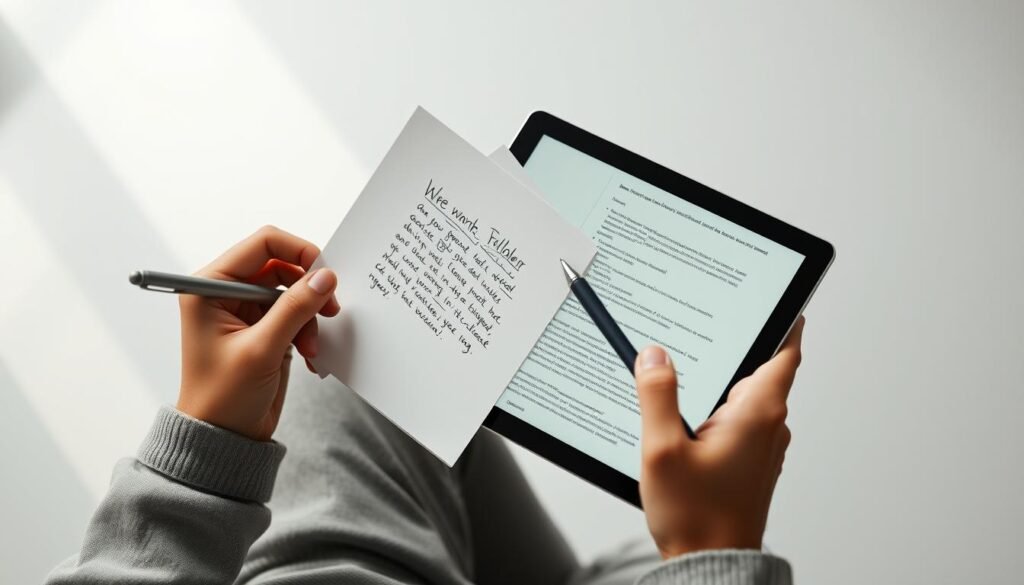
In conclusion, understanding user preferences is key to finding the best note-taking habits. Whether you’re a student or a professional, choose what works best for you.
Cognitive Science Insights into Note-Taking
Research in cognitive science shows how different note-taking methods work. This includes handwriting and typing on devices like the Surface Pro.
How Handwriting Affects Learning
Handwriting notes can greatly improve memory and understanding. When we write by hand, we tend to remember and process information better.
Key benefits of handwriting notes include:
- Improved retention due to the physical act of writing
- Better comprehension through the processing of information
- Enhanced recall during exams or when referencing notes
A study showed that handwriting notes helps students remember better than typing. This is because handwriting engages the brain more deeply.
Typing’s Impact on Cognitive Load
Typing notes, on the other hand, affects cognitive load differently. While it’s faster and captures more info, it might not engage the brain as much as handwriting.
The cognitive load from typing can be influenced by several factors. These include:
- The speed of typing and its impact on information processing
- The possibility of distractions when using a device for note-taking
- The ability to multitask and its effect on learning
| Aspect | Handwriting | Typing |
|---|---|---|
| Retention | High | Variable |
| Cognitive Load | Engaging | Potential for distraction |
| Speed | Slower | Faster |
Knowing these differences helps us pick the best note-taking method. Whether it’s handwriting with a Surface Pen or typing on a Surface Pro, it depends on our needs.
Combining Handwriting and Typing Notes
Many are now using a mix of handwriting and typing for notes. This blend can make learning better and work more efficient. It’s a smart way to use the best of both worlds.
Hybrid Note-Taking Approaches
Hybrid note-taking means using both handwriting and typing. For example, you might write notes with a digital pen and then type them up later. This works great with devices like the Surface Pro, which supports both.
Benefits of Hybrid Note-Taking include being more flexible. Handwriting is good for brainstorming or detailed diagrams. Typing is better for lots of text or written work.
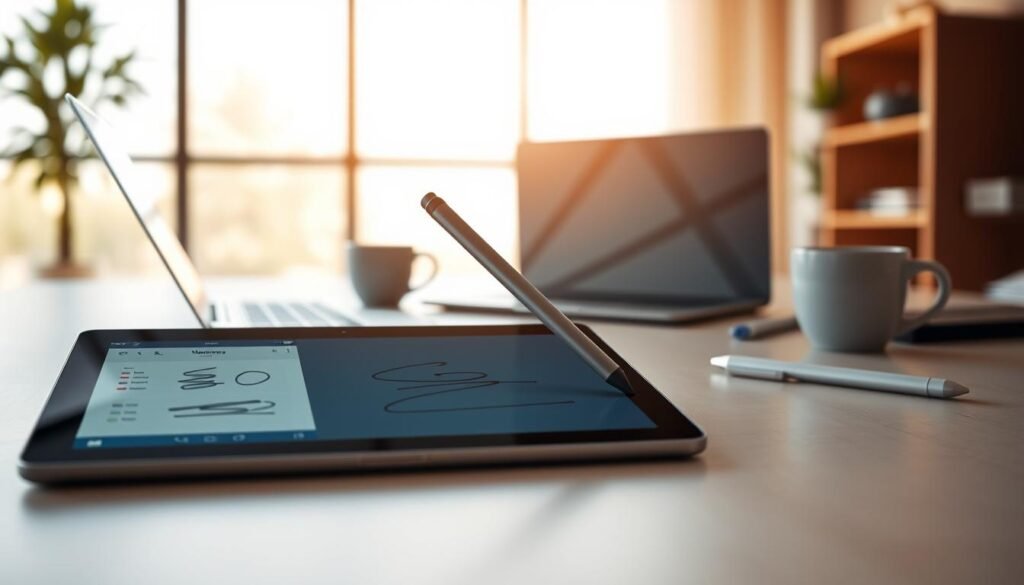
Leveraging Technology for Best Results
To get the most out of hybrid note-taking, the right tech is key. Use digital pen note-taking apps that mix handwritten and typed notes smoothly. Apps like OneNote and Notion are great for this, letting you convert handwriting to text and organize notes.
| App Feature | OneNote | Notion |
|---|---|---|
| Handwriting Recognition | Yes | Yes |
| Organization Features | Notebooks, Sections, Pages | Pages, Databases |
| Collaboration Tools | Sharing, Permissions | Sharing, @Mentions |
When picking a note-taking app, think about what you need. For hybrid note-taking, look for apps that let you easily switch between writing and typing. Also, check how well they organize your notes.
By using a hybrid note-taking method and the right digital tools, you can make your notes better. This can help you learn more and work more efficiently.
Best Practices for Effective Note-Taking
Effective note-taking boosts productivity and learning. The Surface Pro is a great tool for this. By using the right strategies and the device’s features, users can improve their note-taking.
Environment and Setup Considerations
Setting up the right environment is essential for good note-taking. It’s not just about the physical space but also digital organization. Using a stylus with your Surface Pro makes taking handwritten notes easier and more natural.
- Make sure your workspace is comfy and free from distractions.
- Use the Surface Pro’s palm rejection feature to avoid marks on your screen.
- Think about using OneNote or Notion for organizing your digital notes. They have great features for managing notes.
Organizing Notes for Future Use
Organizing your notes well is as important as taking them. A good system makes it easy to find information. This is helpful for students and professionals alike.
- Give your notes clear and descriptive titles.
- Use tags or categories to quickly find specific notes.
- Keep your notes up to date and concise.
By following these best practices, Surface Pro users can get the most out of their device. Whether they’re writing or typing notes.
Conclusion: Choosing the Right Note-Taking Method
Deciding between handwriting and typing notes on a Surface Pro depends on your personal preferences and goals. The Surface Pro supports both methods with features like stylus support and various note-taking apps.
Key Considerations
Think about your learning style, the content you’re working with, and your organization needs. Students might like handwriting to help remember things better. On the other hand, professionals might prefer typing for quicker note-taking.
Personalizing Your Experience
Finding the best app for handwriting notes can make a big difference. Apps like OneNote and Notion offer features for both handwriting and typing. Try out different methods and apps to see what suits you best.