

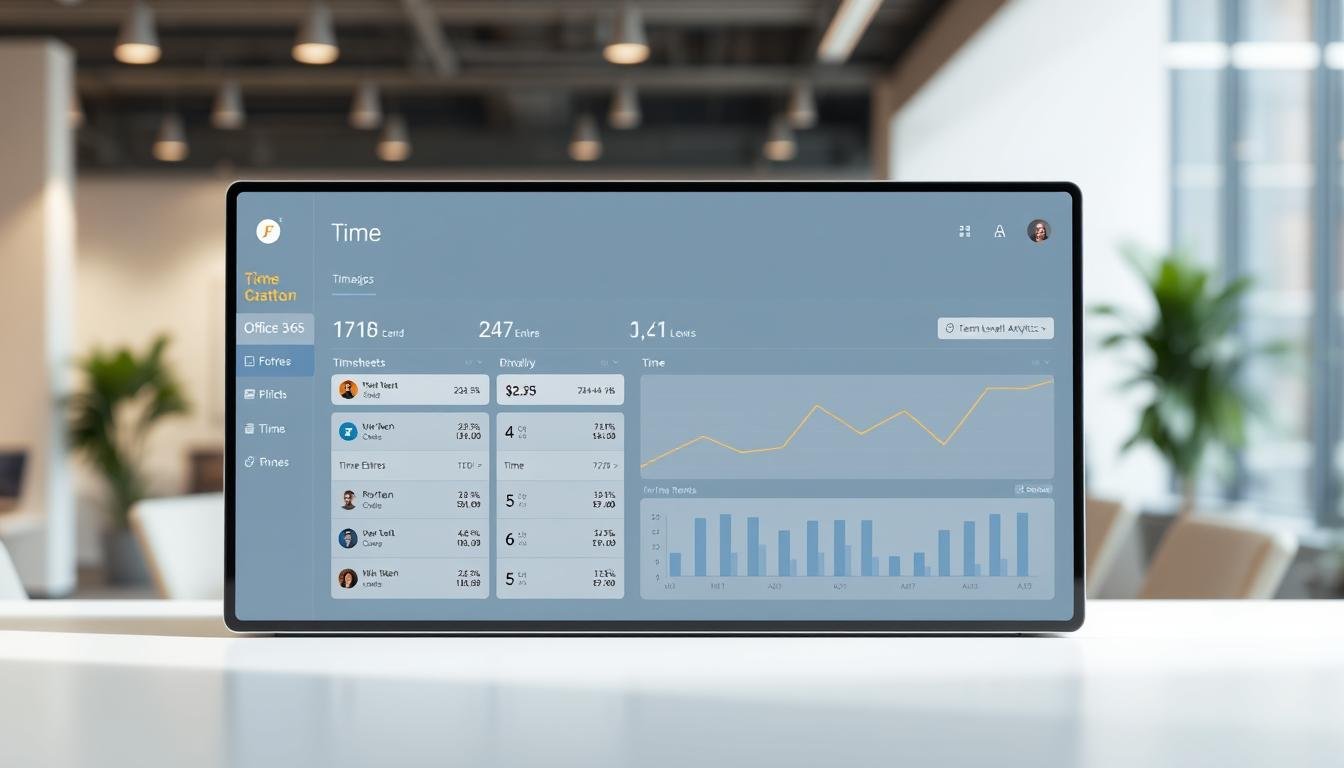
Are you tired of the tedious process of managing manual timesheets? Are errors and inefficiencies slowing down your business? The old way of tracking work hours can really slow things down. Solutions like Timeneye make it easy to create timesheets in Microsoft365, so you don’t have to use many apps.
Switching to digital time tracking solutions can make things more accurate and efficient. This article will show you how to start using digital time tracking in your company. You’ll learn all about the benefits and how to make the change.
Key Takeaways
- Benefits of replacing manual timesheets with digital solutions
- Overview of the migration process to digital time tracking
- Increased accuracy and productivity with digital tools
- Seamless integration with Microsoft365
- Steps to implement digital time tracking in your organization
Understanding Time Tracking and Its Importance
Time tracking is key in today’s business world. It means keeping track of how long tasks, projects, and activities take. This is vital for improving productivity, managing resources well, and making smart choices.
Benefits of Time Tracking for Businesses
Time tracking brings many advantages to businesses, such as:
- Increased Productivity: It helps find and fix inefficient areas, making work better.
- Better Resource Allocation: It ensures resources are used right, keeping projects on schedule and within budget.
- Improved Project Management: Accurate tracking lets businesses manage projects well, set realistic goals, and make informed decisions.
- Enhanced Employee Accountability: It makes employees more transparent and accountable, keeping them focused and motivated.
Common Challenges with Manual Timesheets
Manual timesheets often have problems like errors and inefficiencies. Some common issues include:
- Inaccurate Reporting: They can give wrong or missing data, making it hard to track task time.
- Time-Consuming: They take a lot of time to manage, taking away from more important tasks.
- Lack of Real-Time Data: They often delay reports, making it hard to adjust to project changes.
Switching to digital time tracking can solve these problems. It offers accurate, efficient, and automated tracking.
Why Choose Office 365 for Time Tracking?
Office365 is great for time tracking because it works well with apps you already know. This makes it easy for businesses using Office365. It helps keep your workflow smooth and cuts down on extra software needs.
Integration with Existing Office365 Applications
Office365 is awesome for time tracking because it connects well with other Microsoft tools. For example, Timeneye’s seamless integration with Microsoft365 tools like Microsoft Teams and Outlook Calendar makes tracking time easy. This lets employees track time right in the apps they use every day, boosting productivity and cutting down on paperwork.
This integration also makes work feel more connected. By linking time tracking with Microsoft Teams, teams can handle projects and track time on tasks better. This helps with better project management and teamwork.
User-Friendly Interface and Accessibility
Office365 is also easy to use for time tracking. Its simple design makes it easy for employees to start using the time tracking feature right away. Plus, it’s accessible from any device, so you can track time from anywhere.
| Feature | Benefit | Impact |
|---|---|---|
| Integration with Microsoft Teams | Enhanced team collaboration | Improved project management |
| User-friendly interface | Ease of use | Reduced training time |
| Accessibility across devices | Convenience | Increased productivity |
In short, Office365 is a solid choice for time tracking. It’s got great integration, an easy-to-use interface, and works on all devices. Using these features can really improve how you track time and boost your productivity.
Preparing for the Migration Process
When businesses switch from manual timesheets to digital time tracking, getting ready is essential. They need to understand their current time tracking setup and who will be affected by the change.
Assessing Current Time Tracking Methods
The first step is to look at how time tracking is done now. They should check if manual timesheets work well, find out what problems they cause, and figure out what a digital system needs to do.
Key areas to assess include:
- The accuracy and reliability of current time tracking data
- The ease of use and user adoption of the current system
- The ability to generate reports and insights from time tracking data
Identifying Key Stakeholders and Requirements
Finding out who needs what is key to a smooth change. This includes understanding the needs of employees, managers, and administrators, as well as any outside people who might be affected.
“Understanding the needs and concerns of stakeholders is essential to implementing a digital time tracking solution that meets the needs of the organization.”
By getting stakeholders involved, businesses can make sure the new system is easy to use and does what the company needs.
By taking these steps, businesses can make the switch to digital time tracking smoothly. This way, they can get the most out of timesheet automation tools.
Steps to Migrate to Digital Time Tracking
Moving to digital time tracking can change how businesses work. It makes things more efficient and clear. This big step to modernize includes several important actions. These steps help make the switch smooth and get the most from digital time tracking.
Choosing the Right Time Tracking Tool
The first step is picking a tool that works well with your Office365 apps. Tools like Timeneye offer a free trial to test their features. Look for a tool that is easy to use, can be customized, and has good customer support.
Consider if the tool fits your workflow. For example, if your team uses Microsoft Teams a lot, find a tool that works well with it. Guides like the one on getting started with Office 365 migration can help understand the process.
Configuring Settings in Office365
After picking a tool, set it up in Office365. This means linking your tool to your Office365 account, setting up user permissions, and making the dashboard show what you need. For example, you might want to track time on specific projects or tasks.

A good time tracking system gives insights into how your team uses their time. Here’s how different settings can help your business:
| Configuration | Benefits | Ideal For |
|---|---|---|
| Automatic Time Tracking | Reduces manual entry, increases accuracy | Teams with repetitive tasks |
| Customizable Dashboards | Provides insights into project timelines, enhances decision-making | Project Managers |
| Integration with Microsoft Teams | Streamlines workflow, enhances collaboration | Remote Teams |
By picking the right tool and setting it up right in Office365, businesses can work better. They can make smarter choices.
Training Your Team on New Time Tracking Practices
When you switch to digital time tracking in Office365, teaching your team is key. Good training helps you get the most out of timesheet automation tools. It also makes the change smoother.
To train your team well, you need to use methods that fit different learning styles and needs.
Best Practices for Effective Training
- Make a detailed training plan that covers everything about the new time tracking system.
- Use a variety of training methods, like hands-on sessions, webinars, and video tutorials.
- Make sure the training is interactive, so people can ask questions and share their thoughts.
- Offer ongoing support to help with any problems that come up after the training.
Addressing Common Concerns from Employees
Employees might worry about the new time tracking system. They might think it’s hard to use, worry about privacy, or wonder how it will change their work. It’s important to talk about these worries before they start.
You can sync time tracking with Microsoft Teams to make it easier for employees to log their time. Showing how the new system can make their work easier and more efficient can help calm their fears.
- Point out the good things about the new system, like less paperwork and more accurate tracking.
- Give clear instructions and resources so employees can learn at their own pace.
- Listen to feedback and be willing to change things based on what employees say.
By putting a lot of effort into training and listening to employee concerns, you can make sure your team is ready and able to use the new time tracking practices. This will lead to a better adoption of the new system.
Ensuring Data Accuracy During Migration
Switching from manual timesheets to digital time tracking is a big step. It’s important to keep data accurate during this change. Office365 can make this transition complex, but it’s key for the new system’s success.
Data Validation Techniques
To keep data accurate, several methods can be used. Data validation rules help spot errors or missing info. These rules check for things like wrong formatting or missing fields.
Using both automated and manual checks is a good idea. Automated scripts can quickly check data against rules. But, manual checks on a few samples can catch any mistakes that scripts might miss.
| Validation Technique | Description | Benefits |
|---|---|---|
| Automated Scripts | Scripts that check data against predefined rules | Reduces manual effort, increases speed |
| Manual Checks | Human review of data samples | Catches errors that automated scripts might miss |
| Data Validation Rules | Rules set to check for data consistency and accuracy | Ensures data integrity, reduces errors |
Setting Up Automated Reminders
Automated reminders are also key for accurate data during migration. They make sure everyone knows about any tasks or data issues. This keeps everyone on track.
Tools like Timeneye have automated workflows and reminders. Timeneye says these features help avoid missed deadlines. They also make it easy for managers to approve tasks without hassle.

By using these strategies, businesses can smoothly switch to digital time tracking in Office365. This keeps data accurate and reduces any problems.
Monitoring and Evaluating Time Tracking Effectiveness
Checking how well time tracking works is key to a successful Office365 migration. It’s important to watch how the new system does to see if it’s working right.
To see if your time tracking system is good, look at key performance indicators (KPIs). These could be things like how productive employees are, how fast projects get done, and how right the time tracking is.
Key Performance Indicators to Track
To really understand how well your time tracking system is doing, track these KPIs:
- Employee productivity rates
- Project completion times
- Accuracy of time tracking data
- User adoption rates
| KPI | Description | Target |
|---|---|---|
| Employee Productivity | Measure of employee output | >90% |
| Project Timelines | Tracking project completion rates | 95% on-time completion |
| Data Accuracy | Accuracy of tracked time |
Gathering feedback from users is also very important. You can do this with surveys, focus groups, or talking to users one-on-one.
Gathering Feedback from Users
User feedback is very helpful. It shows how easy the time tracking system is to use and what needs to get better. It makes sure the system really meets what users need.
By always checking KPIs and listening to user feedback, companies can make their time tracking better. This way, they get the most out of their Office365 time tracking migration.
Customizing Time Tracking Solutions in Office 365
Office365 has many tools and features for a personalized time tracking experience. Businesses can tailor these solutions to fit their needs. This improves efficiency and meets specific requirements.
Managing User Permissions
Managing user permissions is key in customizing time tracking. It’s about who can see time tracking data and what they can do. Proper permission management ensures data security and integrity.
- Define user roles and responsibilities
- Assign permissions based on job requirements
- Regularly review and update permissions as needed
Creating Custom Reports and Dashboards
Creating custom reports and dashboards is another important part of customization. Office365’s integration with Power BI lets organizations get insights from time tracking data. This allows businesses to make informed decisions and optimize their operations.
| Report Type | Description | Benefits |
|---|---|---|
| Time Spent on Tasks | Details the amount of time spent on specific tasks | Helps identify areas for productivity improvement |
| Employee Productivity | Tracks employee work hours and productivity levels | Enables managers to optimize team performance |
| Project Progress | Monitors the progress of ongoing projects | Facilitates timely project completion and resource allocation |
By using these customization options, businesses can sync time tracking with Microsoft Teams and other Office365 apps. This boosts collaboration and productivity. Custom reports and dashboards also help understand how to track employee hours online effectively. They provide valuable insights into workforce productivity.
Addressing Security and Compliance Issues
When moving to digital time tracking in Office365, security and compliance are key. Companies must protect their data and follow the law. This is important when switching from manual timesheets to digital ones.
Data Protection Measures in Office365
Office365 has many security features to keep data safe. Data encryption makes sure data is secure when it’s sent or stored. It also has multi-factor authentication to make accounts more secure.
To keep data safe, businesses can:
- Do regular security checks to find weak spots
- Use access controls to limit who can see or change data
- Have backup and recovery plans to avoid losing data
| Security Feature | Description | Benefit |
|---|---|---|
| Data Encryption | Protects data from unauthorized access | Ensures data stays safe and complete |
| Multi-Factor Authentication | Adds an extra layer of security to user accounts | Less chance of someone getting in without permission |
| Access Controls | Limits who can view or edit time tracking data | Stops unauthorized changes to data |
Understanding Compliance Requirements
It’s important to follow the law when using digital time tracking. Businesses need to know the laws that apply to them. This includes the General Data Protection Regulation (GDPR) and the Fair Labor Standards Act (FLSA).
To stay compliant, companies should:
- Look into the laws that apply to them
- Make policies and procedures that follow these laws
- Train employees on what the laws say and how to follow them
By tackling security and compliance early, businesses can make a smooth switch to digital time tracking in Office365. This keeps their data safe and follows the law.
Future-Proofing Your Time Tracking System
To stay ahead in today’s fast-paced business world, it’s key to future-proof your time tracking system. This means making sure it can grow with your business and keep up with new tech. Doing this helps you stay efficient, cut costs, and boost productivity.
Using timesheet automation tools is a big part of future-proofing. These tools make tracking time easier, cut down on mistakes, and boost accuracy. Plus, they work well with other Microsoft 365 apps, like Microsoft Teams, for a smooth experience.
Regularly Updating Software and Tools
Keeping your time tracking system up to date is vital. This means updating your software and tools regularly. These updates often bring new features and improvements. For example, updating your timesheet tools can give you the latest security fixes and features, like better integration with Microsoft 365’s AI tools.
Here’s a look at how time tracking tools have evolved:
| Feature | Old Version | New Version |
|---|---|---|
| Integration | Limited to a few apps | Seamless integration with Microsoft 365 apps, including Teams |
| Automation | Basic automation features | Advanced automation capabilities, including AI-powered tools |
| Security | Basic security measures | Enhanced security features, including regular updates and patches |
Adapting to Changes in Business Needs
Business needs can change quickly, and your time tracking system should be able to adjust. This might mean syncing time tracking with Microsoft Teams for remote work or changing project needs. Being flexible keeps your system effective and efficient.
To adapt to changing business needs, try these strategies:
- Regularly review and update your time tracking policies
- Provide training to employees on new features and tools
- Listen to user feedback to find areas for improvement

Conclusion: Making the Transition Smooth and Successful
Moving to digital time tracking in Office365 can really boost your team’s work. It helps you see the good and bad of using paper timesheets. This way, you can choose the best digital tools for your team.
Starting a digital time tracking journey in Office365 needs careful planning. First, look at how you track time now. Then, pick the best tool for your needs. Training your team is key to using it well.
This approach helps you track hours online easily. It cuts down on paperwork and makes tracking more accurate.
For a smooth switch, use the right tools and strategies. For more tips on moving your Office365 data, check out this guide on mastering Office365 data.
Adopting digital time tracking can help your business stay ahead. Begin your Office365 time tracking migration today. See how it improves your team’s work and your company’s efficiency.