

Are you tired of dealing with OneDrive sync issues on your Windows PC?
Many users face problems with files not syncing correctly or taking up too much space. Disabling OneDrive sync can be a viable solution, but what comes next?
Switching to alternative cloud storage services like Dropbox or Google Drive can offer more flexibility and features. This makes it easier to manage your files and backups.
Key Takeaways
- Learn how to disable OneDrive sync on Windows
- Discover alternative cloud storage services for PC backups
- Compare features and pricing of Dropbox and Google Drive
- Understand the benefits of switching to a new cloud storage service
- Find out how to easily transition to a new cloud storage service
Understanding OneDrive Sync Features
Knowing how OneDrive sync works is key to managing your files well. It lets you access your files on different devices. This way, your files stay updated and easy to find.
What Is OneDrive Sync?
OneDrive sync keeps your files in sync across devices. It’s great for those who use many devices or work with others. It makes sure you always have the latest version of your files, no matter the device.
To learn more about OneDrive sync, check out this resource. It explains the sync process in detail.
Benefits of Using OneDrive
OneDrive has many perks. It gives you seamless file access and collaboration features. It also keeps your files safe with strong security.
- Access files from anywhere
- Collaborate with others on documents
- Secure storage with robust security measures
Common Issues with OneDrive Sync
OneDrive sync is great, but it can have problems. Issues like file duplication and bandwidth limitations can slow it down. Knowing these issues helps fix problems and use OneDrive better.
Some users might face file conflicts or sync errors. These can be fixed by tweaking sync settings or troubleshooting.
Reasons to Disable OneDrive Sync
There are many reasons to stop OneDrive sync on Windows devices. OneDrive works well with Windows, but it might not meet everyone’s needs. Some users might find its features don’t fit their preferences.
Privacy Concerns
Privacy is a big reason to disable OneDrive sync. OneDrive stores files online, which can be risky for sensitive data. Users who are careful about their online data might choose to keep files local.
Data privacy is a big worry for many. Disabling OneDrive sync is a simple way to keep files offline. This is very important for businesses or individuals with sensitive information.
Bandwidth Limitations
Bandwidth is another reason to disable OneDrive sync. Syncing can use a lot of internet bandwidth, slowing down other activities. For those with small internet plans or slow connections, stopping OneDrive sync helps manage bandwidth better.
Working with big files or having many devices on OneDrive can use a lot of bandwidth. Disabling sync helps save internet bandwidth for other tasks.
Desire for Alternative Solutions
Some users just prefer other cloud storage services over OneDrive. Dropbox and Google Drive offer different features and prices that might be better for some users.
| Cloud Storage Service | Free Storage | Paid Plans |
|---|---|---|
| OneDrive | 5 GB | Starting at $1.99/month for 100 GB |
| Dropbox | 2 GB | Starting at $9.99/month for 2 TB |
| Google Drive | 15 GB (shared with Google Photos and Gmail) | Starting at $1.99/month for 100 GB |
Disabling OneDrive sync makes it easier to switch to other cloud storage services. This is great for those who want more flexible storage or specific features not found in OneDrive.
How to Disable OneDrive Sync on Windows
If you want to use another cloud storage service, first disable OneDrive sync on your Windows device. This is easy to do in a few steps.
Step-by-Step Guide
To stop OneDrive sync, start by pausing it. Click on the OneDrive icon in the system tray. Then, click on the “Help & Settings” icon (a gear) and choose “Pause syncing.”
- Choose how long you want to pause syncing, or pick “Pause until tomorrow” for a short pause.
- To stop syncing for good, unlink your OneDrive account from your PC.
To unlink your account, open OneDrive settings by right-clicking on the icon and picking “Settings.” Go to the “Account” tab and click “Unlink this PC.”
Verifying OneDrive is Disabled
After unlinking, check if OneDrive sync is off. Look at the OneDrive icon in the system tray. It should not be syncing files anymore. Also, check the OneDrive folder on your PC to see if it’s updating.
If you’ve disabled OneDrive sync right, you’ll see a message saying it’s not syncing.
Alternative Sync Settings
Now that OneDrive sync is off, you can try Dropbox or Google Drive. Both offer great syncing and can sync specific folders on your PC.
To set up a new service, download and install its desktop app. Sign in with your account and follow the setup steps for syncing.
Migrating from OneDrive to Dropbox
Looking to backup PC to Dropbox? Switching from OneDrive is easy and can improve your cloud storage experience. Dropbox has features like file sharing, collaboration, and various storage options that make it a great choice.

Key Features of Dropbox
Dropbox is known for its easy-to-use interface and strong features. Key benefits include:
- File Sharing: Share files and folders easily with others.
- Collaboration: Work on files with colleagues and friends at the same time.
- Storage Options: Choose from different storage plans to meet your needs.
Setting Up Dropbox
To start using Dropbox, just follow these steps:
- Create a Dropbox account on the official Dropbox website.
- Download and install the Dropbox desktop application.
- Sign in to your Dropbox account through the application.
- Customize your settings as you like.
For a detailed guide on moving from OneDrive to Dropbox, check out this link.
Transferring Files to Dropbox
After setting up Dropbox, moving your files from OneDrive is simple. Here’s how the transfer process compares:
| Method | Description | Time Required |
|---|---|---|
| Direct Upload | Upload files directly through the Dropbox web interface. | Variable |
| Desktop Application | Use the Dropbox desktop app to sync files from your computer. | Variable |
| Third-Party Tools | Use third-party tools for a faster transfer process. | Fast |
By following these steps, you can easily move from OneDrive to Dropbox. Start enjoying the benefits of using third-party cloud storage for Windows backups.
Migrating from OneDrive to Google Drive
Moving from OneDrive to Google Drive is easy and brings many benefits. It offers better collaboration tools and more storage options. Google Drive is part of Google Workspace, making it easy to work with Google Docs, Sheets, and Slides.
Key Features of Google Drive
Google Drive has many features that make it a great choice for cloud storage. Some of its main features are:
- Generous Storage Options: You get 15GB of free storage. You can get more with different plans.
- Collaboration Tools: Work on documents, spreadsheets, and presentations together in real time.
- File Sharing: Share files and folders easily. You can decide who can see or edit them.
- Integration with Google Services: It works well with other Google apps. This makes your work more efficient.
Setting Up Google Drive
Setting up Google Drive is simple. Here’s how to start:
- Create a Google account if you don’t have one.
- Download and install the Google Drive desktop app.
- Sign in with your Google account details.
- Set up your sync settings to pick which folders to sync.
Transferring Files to Google Drive
There are a few ways to move files from OneDrive to Google Drive. You can:
- Drag and drop files into the Google Drive folder on your computer.
- Upload files using the Google Drive web interface.
- Use the Google Drive desktop app for automatic syncing.
By following these steps, you can move your files from OneDrive to Google Drive. This lets you use Google’s cloud storage system’s benefits.
Comparing OneDrive, Dropbox, and Google Drive
OneDrive, Dropbox, and Google Drive are top cloud storage services. They each have special features for different needs. Knowing their strengths and weaknesses is key when looking for OneDrive alternatives for PC backups.
Storage Options and Pricing
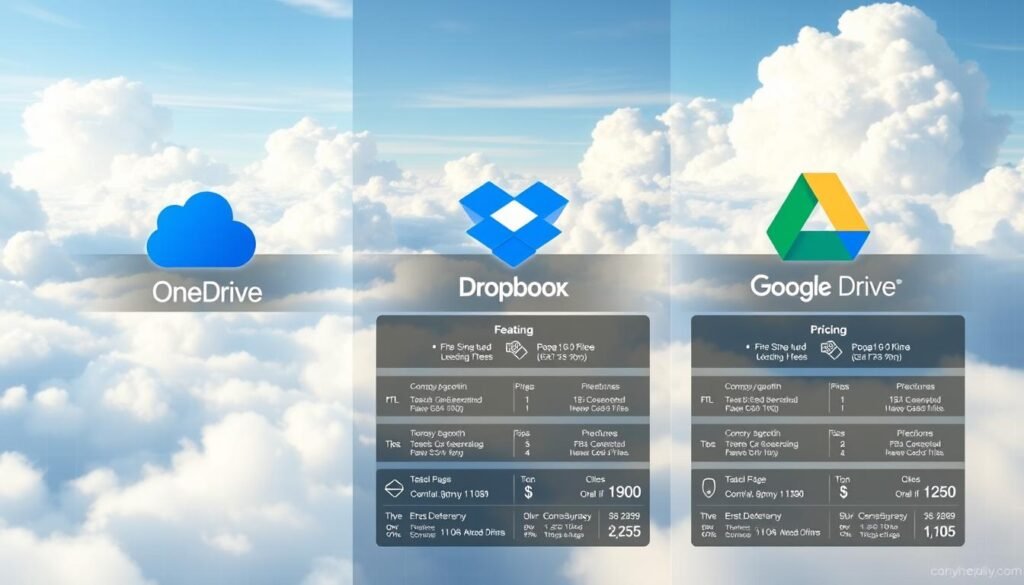
Storage and pricing are big factors in choosing a cloud service. Here’s a look at the three:
| Service | Free Storage | Paid Plans |
|---|---|---|
| OneDrive | 5 GB | 100 GB ($1.99/month), 1 TB ($6.99/month) |
| Dropbox | 2 GB | 2 TB ($9.99/month), 3 TB ($16.58/month) |
| Google Drive | 15 GB (shared with Google Photos and Gmail) | 100 GB ($1.99/month), 2 TB ($9.99/month) |
Google Drive gives the most free storage, thanks to Google Photos and Gmail. But Dropbox is loved for its simple design and easy use. It’s great for those who want a hassle-free experience.
User Interface and Accessibility
The look and feel of these services differ, affecting how users enjoy them. OneDrive works well with Windows, making it a top choice for Windows users. Dropbox is known for its clear and simple design. It makes sharing and working together on files easy.
Collaboration Features
Collaboration is key in cloud storage, allowing teams to work together. Google Drive stands out here, with features like real-time editing and commenting in Google Docs, Sheets, and Slides. Dropbox also has tools for sharing and commenting, but its editing is not as advanced as Google Drive’s.
In summary, picking between OneDrive, Dropbox, and Google Drive depends on what you need. It’s about storage, ease of use, and collaboration tools. Knowing what each service offers best helps users choose the right cloud storage for them.
Managing Files After Disabling OneDrive
After disabling OneDrive, you’ll need to organize your files and find new ways to back them up. Keeping your files in order is key to staying productive. It also makes sure your important documents are easy to find.
Organizing Files Locally
Start by setting up a folder system on your computer. Sort your files into folders based on their type or project. For example, you might have folders for documents, images, videos, and music.
Use clear names for your folders and files. This makes them easy to spot. A good file naming system helps you find files fast. Use dates, project names, or version numbers in your file names.
Backing Up Files with Dropbox or Google Drive
Choose a cloud storage service like Dropbox or Google Drive to back up your files. Both offer easy-to-use interfaces and strong features for storing and syncing files.
First, create an account with your chosen service. Then, download and install their desktop app. This app lets you sync your local files with the cloud. You can pick which folders to sync or backup your whole computer.
- Dropbox: Offers features like file sharing, collaboration tools, and automatic file syncing.
- Google Drive: Integrates well with other Google services and provides ample storage options.
Regular Maintenance Tips
Regular checks are key to keeping your files organized and backed up right. Set times to review your file structure, update backups, and delete old files.
Make sure your cloud storage is syncing your files right. Also, check if you have enough storage space. Set reminders to check your backup settings and adjust them as needed.
By following these tips, you can keep your files safe and organized even without OneDrive. This ensures your data is secure, well-organized, and easy to access.
Troubleshooting Sync Errors
Switching from OneDrive to cloud storage like Dropbox or Google Drive can cause sync errors. These errors might stem from internet issues, account settings, or software bugs.
Common Sync Errors in OneDrive
OneDrive users might see files not updating or syncing across devices. They might also get error messages saying OneDrive can’t sync files. To fix these, try restarting OneDrive, checking your internet, or looking at your account settings.
- Check if OneDrive is running correctly and restart it if necessary.
- Verify that your internet connection is stable.
- Ensure that your account settings are correctly configured.
Fixing Dropbox Sync Issues
Dropbox users might face issues like files not syncing or updating. To solve these, try restarting Dropbox, checking your internet, or unlinking and relinking your account.
Troubleshooting steps for Dropbox sync issues:
- Restart Dropbox to see if it resolves the issue.
- Check your internet connection to ensure it is stable.
- Unlink and relink your Dropbox account to refresh the connection.
Troubleshooting Google Drive Sync Problems
Google Drive users might see errors like files not syncing or updating. To fix these, try restarting Google Drive, checking your internet, or clearing the cache.
Steps to troubleshoot Google Drive sync problems:
- Restart Google Drive to see if it resolves the issue.
- Check your internet connection to ensure it is stable.
- Clear the Google Drive cache to remove any corrupted data.
Enhancing Storage Solutions
There are many ways to improve your storage options. Looking into other backup choices and devices is key to better data management.
Exploring Other Backup Options
One great way to boost your storage is by checking out other backup services. Dropbox and Google Drive are top picks for backing up your PC. You can backup your PC to Dropbox or Google, giving you secure and flexible storage.
When picking a backup service, think about storage size, file sharing, and security. Dropbox and Google Drive are easy to use and have good prices.
Using External Hard Drives
External hard drives are also a good choice for more storage. They have lots of space and are easy to carry, perfect for big backups.
Benefits of external hard drives include:
- High storage capacity
- Portability
- Easy data transfer
Cloud Storage Alternatives
There are other cloud storage options too. Services like Dropbox and Google Drive have different features and prices for various needs.
| Cloud Storage Service | Storage Capacity | Pricing |
|---|---|---|
| Dropbox | 2TB (Basic) | $9.99/month |
| Google Drive | 2TB (Basic) | $9.99/month |
| pCloud | 2TB (Premium) | $7.99/month |
Exploring these options can help you find the best storage for your needs. This way, you can improve your data management plan.
Best Practices for Cloud Storage
Cloud storage best practices can greatly improve your data safety and access. Moving from OneDrive to services like Dropbox or Google Drive is easier with these tips. They make sure your experience is smooth and secure.
Tips for Effective File Management
Good file management is key to a great cloud storage plan. Here are some tips to help:
- Make a clear folder structure to organize your files well.
- Choose file names that are easy to understand to avoid mix-ups.
- Keep your cloud storage tidy by removing files you don’t need.
Following these steps can boost your productivity and make sure your files are easy to find.
Security Measures for Cloud Storage
Keeping your data safe is the top priority with cloud storage. Here are some ways to do it:
- Turn on two-factor authentication (2FA) for extra security.
- Use end-to-end encryption to protect your files from hackers.
- Change your passwords often and make them strong and unique.
“The security of cloud storage is only as strong as its weakest link.” So, it’s important to stay ahead with strong security steps.

Understanding File Sharing Permissions
File sharing permissions are vital for controlling who sees your files. Here’s how to manage them well:
- Know the different permission levels like read-only, edit, and delete.
- Give the right permissions based on the user’s role and needs.
- Check and update permissions often to keep them current.
Learning about file sharing permissions helps keep your data safe and makes teamwork more efficient and secure.
Conclusion: Choosing the Right Cloud Solution
Deciding to stop using OneDrive on Windows and switch to Dropbox or Google Drive is a big choice. You need to think about what you really need. Look at the features, cost, and how easy it is to use each service.
User Needs Assessment
First, figure out what you need for managing files, how much storage you need, and if you need to work with others. If you want to back up your PC, check if the service is easy to use and has good backup and sharing options.
Knowing how to turn off OneDrive sync and looking at other cloud storage options helps you make a smart choice. Whether you want more storage, better sharing, or teamwork features, picking the right cloud service can make managing your files easier.