

Are you a content creator looking for the perfect tool to bring your vision to life? With a powerful PC at your disposal, the possibilities are endless. But, there are many choices when it comes to video editing software.
The right video editor can make all the difference in the quality of your final product. Depending on your technical ability, budget, and project complexity, the best video editing software for you might vary.
In this article, we’ll explore industry-leading options like Adobe Premiere Pro and DaVinci Resolve. We’ll discuss their key features, pricing, and system requirements. This will help you make an informed decision.
Key Takeaways
- Top video editing software options for powerful PCs
- Key features and pricing comparisons
- System requirements for smooth performance
- Comparison chart to help you choose the best software
- Tips for selecting the right video editor for your needs
Overview of Video Editing Software
The world of video editing software is vast. It offers many options for different needs and skill levels. Whether you’re a pro filmmaker or just starting, knowing what to look for is key.
What to Look for in Video Editing Software
When picking video editing software, several things matter. First, check if it works on your operating system. Some only work on Windows or Mac. Also, think about your computer’s processor and RAM. These affect how well the software works.
Look for 4K support, color grading tools, and audio editing capabilities. Some software has cool features like motion tracking and visual effects. If you want open-source video editing software or affordable alternatives to Adobe Premiere, DaVinci Resolve and Filmora are good choices.
Importance of System Requirements
System requirements are key for smooth video editing software use. You’ll need at least 8GB RAM, but 16GB or more is better for tough projects. A multi-core processor is also a must for fast video editing.
Here’s a table showing system requirements for some top video editing software:
| Software | RAM | Processor | Operating System |
|---|---|---|---|
| Adobe Premiere Pro | 8GB | Multi-core Intel processor | Windows, Mac |
| DaVinci Resolve | 16GB | Multi-core Intel or AMD processor | Windows, Mac, Linux |
| Filmora | 4GB | Multi-core Intel processor | Windows, Mac |
Knowing these requirements and features helps you choose the right video editing software for you.
Adobe Premiere Pro: The Industry Standard
Adobe Premiere Pro is the top choice for professionals. It has advanced video editing tools. It’s known for its strong features and teamwork options.
Key Features
Adobe Premiere Pro has many features for pro video editors. Some of its key features include:
- Multi-camera editing, allowing for seamless switching between different camera angles
- Advanced color grading tools, enabling precise control over the color palette of your project
- Audio editing capabilities, including noise reduction and audio effects
- Integration with other Adobe Creative Cloud apps, such as After Effects and Photoshop
User Interface and Usability
The interface of Adobe Premiere Pro is easy to use and can be customized. Editors can make their workspace fit their needs. This makes it simpler to find and use tools. The software works well on different devices, thanks to its responsive design.
Pricing Options
Adobe Premiere Pro is part of Adobe Creative Cloud. There are different plans to fit your needs. The Creative Cloud All Apps plan gives you Premiere Pro and other Adobe apps. The Single App plan lets you subscribe to Premiere Pro alone.
DaVinci Resolve: Best for Color Grading
DaVinci Resolve is top-notch video editing software. It’s famous for its amazing color grading tools.
Unique Selling Points
DaVinci Resolve shines with its professional-grade color grading. It has many tools for tweaking color, contrast, and brightness. This makes it perfect for filmmakers and editors.
It also has advanced audio editing features. This makes the post-production process smoother. Its all-in-one editing, color grading, and audio mastering tools are a big plus.
Free vs. Paid Version
DaVinci Resolve comes in free and paid versions. The free version has lots of editing, color grading, and audio tools. It’s great for indie filmmakers and those watching their budget.
The paid version, DaVinci Resolve Studio, has more features. You get advanced noise reduction, lens corrections, and stereoscopic 3D tools. For pros needing these, the Studio version is worth it.
| Feature | Free Version | Paid Version (Studio) |
|---|---|---|
| Color Grading Tools | Yes | Yes |
| Advanced Noise Reduction | No | Yes |
| Stereoscopic 3D Tools | No | Yes |
Workflow and Customization
DaVinci Resolve lets you customize a lot. You can change the interface and workflow to fit your needs. This includes making your own keyboard shortcuts and saving layouts.
The Fairlight audio integration boosts its workflow. It makes moving between editing, color grading, and audio mastering smooth.
Final Cut Pro X: A Mac Exclusive
Final Cut Pro X is only for Mac users. It’s a top-notch video editing tool. Many professional video editors love it for its advanced features and smooth performance on Macs.
Innovative Features
Final Cut Pro X has cool features like advanced color grading tools, 360-degree video editing, and multi-camera editing. These are great for content creators who want to make top-notch videos.
It also has a robust set of effects and transitions. This lets editors add a creative flair to their work. Plus, it supports HDR (High Dynamic Range) video, making videos look amazing on compatible devices.
Performance on High-End Macs
Final Cut Pro X works great on high-end Macs. It offers smooth performance even with big projects. This makes it a top choice for pros working on tough projects.
The software uses Metal graphics processing for faster video rendering and playback. This makes editing faster and easier, so creators can focus on their art.
User Experience and Community Support
The interface of Final Cut Pro X is easy to use. It’s clean and organized, helping editors find what they need quickly. It also has comprehensive tutorials for new users.
For those looking for affordable alternatives to Adobe Premiere, Final Cut Pro X is a good choice. It’s a one-time purchase, which can save money over time compared to subscription services.
| Feature | Final Cut Pro X | Adobe Premiere Pro |
|---|---|---|
| Color Grading Tools | Advanced | Advanced |
| Pricing Model | One-time purchase ($299.99) | Subscription-based ($20.99/month) |
| Multi-camera Editing | Supported | Supported |
| 360-degree Video Editing | Supported | Supported |
Adobe After Effects: Enhance Your Edits
Adobe After Effects is a must-have for video editors wanting to add advanced animation and visual effects to their work. It’s a powerful tool for creating top-notch motion graphics and visual effects. These can greatly enhance your video content.
Animation and Motion Graphics
Adobe After Effects is perfect for making motion graphics and visual effects. It has a wide range of features for both simple and complex animations. This software helps bring your ideas to life.
- Advanced keyframe animation
- Dynamic linking with Premiere Pro
- Extensive library of presets and templates
Integration with Premiere Pro
Adobe After Effects works well with Premiere Pro, making editing and adding visual effects easy. This integration helps editors work more efficiently. It makes adding complex visual effects to your projects simple.
Pricing and Subscription Plans
Adobe After Effects is part of Adobe Creative Cloud. It offers various subscription plans for different needs. Whether you’re an individual or part of a team, there’s a plan for you. These plans provide flexibility and access to new features and updates.
Filmora: User-Friendly for Beginners
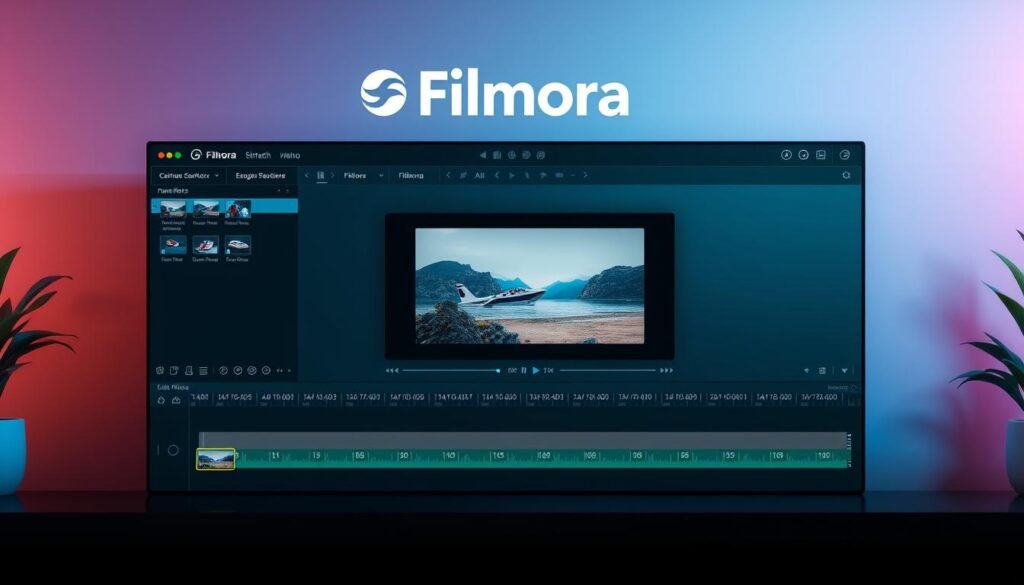
Filmora is a great choice for beginners in video editing. It’s easy to use and packed with features. It’s perfect for those new to editing, with a simple interface and powerful tools.
Easy-to-Use Interface
Filmora’s interface is designed for beginners. It’s easy to get started and start editing videos quickly. The drag-and-drop functionality makes adding media and effects simple.
Key Features and Limitations
Filmora has many features that beginners will love. It supports 4K video and has a huge library of transitions and effects. It also has tools for color correction and audio adjustments.
- Support for 4K video editing
- A vast library of transitions, effects, and titles
- Color correction and grading tools
- Audio ducking and keyframing
While Filmora is rich in features, it’s not perfect. It might not have all the advanced tools of Adobe Premiere Pro. But for beginners, it’s a great choice because it’s easy to use and has lots of features.
Pricing and Availability
Filmora comes in a free and paid version. The free version has most of the features beginners need. But, the paid version, Filmora Pro, has more advanced tools and effects.
| Version | Price | Key Features |
|---|---|---|
| Free | $0 | Basic editing tools, transitions, and effects |
| Pro | $49.99/year or $79.99 one-time purchase | Advanced editing tools, additional transitions and effects, color grading, and more |
If you’re looking for affordable alternatives to Adobe Premiere, Filmora is a good option. Its price is competitive, and it offers a lot of value.
Pinnacle Studio: Affordable Power
Pinnacle Studio is a great choice for those who want good video editing without spending a lot. It’s a professional-level software that meets many editing needs. This makes it a top pick for those looking for a best video editing software that’s easy on the wallet.
Versatile Editing Tools
Pinnacle Studio has a wide range of tools to improve any video. It offers basic cuts and advanced color and audio editing. Its versatile editing tools help creators bring their ideas to life easily.
It has features like multi-camera editing, motion tracking, and title editing. This makes it a full-featured solution for video editing. Whether you’re experienced or new, Pinnacle Studio’s easy-to-use interface helps you use these tools well.
Pros and Cons
Pinnacle Studio has its good points and bad. It’s easy to use and has many editing tools, and it’s cheaper than many other software. But, it might not have all the advanced features of more expensive software. Also, it can be hard to learn for beginners.
Despite these downsides, Pinnacle Studio is a favorite among creators. It’s a solid choice for a video editor for content creators that does a lot without costing a lot.
Suitable for Different Skill Levels
Pinnacle Studio is great for all skill levels. Beginners will like its easy interface and tutorials. More experienced users will enjoy the advanced tools like color grading and multi-camera editing.
In short, Pinnacle Studio is a strong and affordable video editing tool. It’s perfect for many creators because of its advanced features, easy use, and good price. It’s a top choice in the market for best video editing software.
HitFilm Express: Free Software with Advanced Features
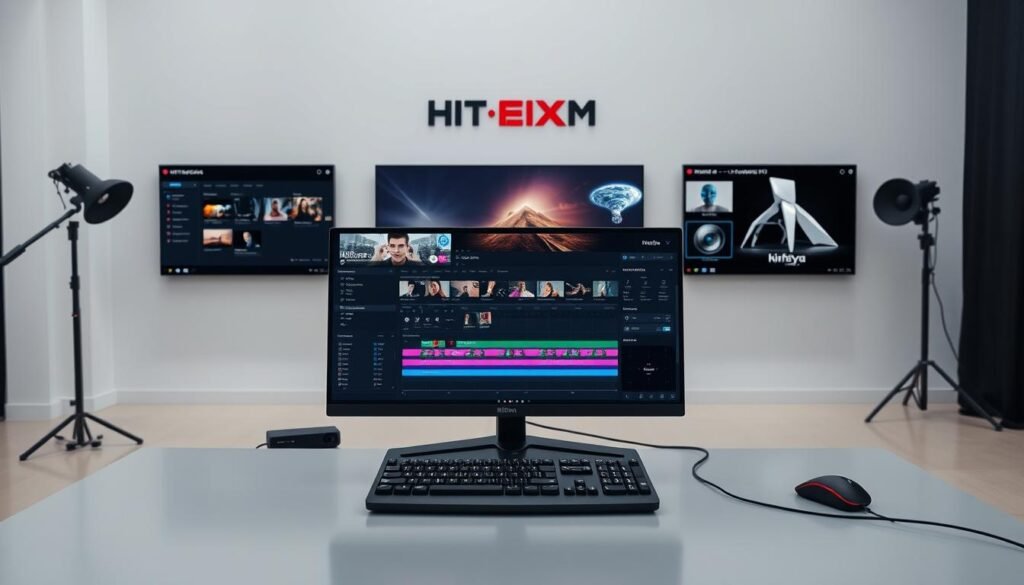
HitFilm Express is a free video editing software with advanced features. It’s popular among beginners and professionals. It has a wide range of tools and is easy to use.
Key Features and Capabilities
HitFilm Express has many features that make it a top choice for editing videos. Some of its main features include:
- Advanced Color Grading Tools: It has a strong color grading system for precise color control.
- Visual Effects and Compositing: It offers many visual effects and a node-based compositing system for stunning scenes.
- Audio Editing and Mixing: It has a full audio editing and mixing suite for fine-tuning audio tracks.
- Multi-Cam Editing: It supports multi-camera editing, making it easy to switch between camera angles.
Ideal Use Cases for HitFilm Express
HitFilm Express is great for many video editing projects. It’s perfect for:
- Independent Filmmakers: It offers advanced features for low-budget films.
- YouTubers and Content Creators: It helps enhance YouTube videos with professional effects and color grading.
- Beginners: It’s a great starting point for new video editors with its easy interface and learning resources.
Community and Learning Resources
HitFilm Express has a big community and lots of learning resources. Users can find tutorials, forums, and documentation to learn more. For more details, check out this detailed review of HitFilm Express.
In conclusion, HitFilm Express is a powerful and free video editing software. It’s great for many users because of its advanced features and easy use.
Corel VideoStudio: A Balanced Option
Corel VideoStudio is a great choice for those looking for a balanced video editing solution. It has a wide range of tools and effects for both new and experienced editors.
Editing Tools and Effects
Corel VideoStudio comes with many editing tools. You can do multi-camera editing, color correction, and audio editing. It also has lots of effects like transitions and filters to make your videos look better.
The tools are easy to use, thanks to its intuitive design. This makes it a great choice for those who want powerful editing without getting lost in complex features.
User Experience
The user experience in Corel VideoStudio is smooth. It has a streamlined interface and drag-and-drop functionality. This makes it easy to work with your videos and add effects quickly.
It also supports GPU acceleration, which makes it faster and more efficient. Plus, you can customize the workspace to fit your needs.
Pricing Model
Corel VideoStudio is available for a one-time purchase. This is good for those who don’t want to subscribe. The prices are fair, with options for different budgets.
Compared to DaVinci Resolve and Premiere Pro, Corel VideoStudio is a strong contender. It offers great features at a price that’s easy on the wallet. It’s perfect for both professionals and hobbyists.
CyberLink PowerDirector: Speed and Performance
CyberLink PowerDirector is a fast video editing software, a great choice instead of Adobe Premiere. It has all the tools content creators need without the high cost of some other software.
Key Features
CyberLink PowerDirector has many cool features. Some of its key features include:
- Advanced video editing tools with 360-degree video editing and motion tracking
- Color grading and audio editing capabilities
- Support for 4K video editing
- A vast library of effects and transitions
It also has a user-friendly interface. This makes it easy for editors to use all the tools.
User Experience and Accessibility
The user experience is key in video editing software. CyberLink PowerDirector is great in this area. It’s easy for all skill levels to use, thanks to its intuitive controls and organized workspace.
“CyberLink PowerDirector has been a game-changer for my video editing needs. The interface is intuitive, and the features are robust.” – User Review
Comparison to Competitors
CyberLink PowerDirector is better than some other software, like Adobe Premiere Pro, because it’s affordable and high-performance. Adobe Premiere Pro is powerful but expensive. CyberLink PowerDirector is cheaper but doesn’t lack in features or speed.
In short, CyberLink PowerDirector is a viable option for content creators. It’s fast, affordable, and has all the tools needed. It’s a great choice in the market.
Comparison Chart of the Best Video Editing Software
The right video editing software for you depends on several things. These include features, cost, and how well it works. We’ve made a comparison chart of some top video editing software options to help you decide.
Key Features Overview
Different video editing software has different features. Here’s a quick look at what some top options offer:
| Software | Multi-track Editing | Color Grading | Special Effects |
|---|---|---|---|
| Adobe Premiere Pro | Yes | Yes | Yes |
| DaVinci Resolve | Yes | Yes | Yes |
| Final Cut Pro X | Yes | Yes | Yes |
| HitFilm Express | Yes | Yes | Yes |
Most top video editing software has advanced features. These include multi-track editing, color grading, and special effects. For more details, check out PCMag’s picks.
Pricing Comparison
Pricing is important when choosing video editing software. Here’s a look at the pricing for some top options:
| Software | Pricing Model | Cost |
|---|---|---|
| Adobe Premiere Pro | Subscription | $20.99/month |
| DaVinci Resolve | Free/Paid | Free/$299 |
| Final Cut Pro X | One-time Purchase | $299.99 |
| HitFilm Express | Free/Paid | Free/$299 |
Pricing models vary a lot. Some offer subscriptions, while others are a one-time purchase. Think about your budget when choosing the best video editing software for you.
Performance Metrics
Performance is key in video editing software. Here’s a quick overview of how some top options perform:
Performance can change based on your system. Generally, Adobe Premiere Pro and DaVinci Resolve work well on high-end systems.
When picking the best video editing software, consider features, pricing, and performance. You can find performance metrics and system requirements on the software’s website.
Conclusion: Choosing the Best Software for You
Finding the right video editing software is key to making great content. There are many choices out there. Knowing what you need is the first step to picking the best one.
Whether you’re a pro or just starting out, the software should fit your project and skill level. It’s important to find a match.
Understanding Your Editing Needs
Think about the types of projects you’ll be doing. Are you making vlogs, short films, or social media clips? Knowing this helps you figure out what features you need.
For example, if you focus on color grading, DaVinci Resolve is a great choice. Adobe Premiere Pro is known for its editing skills overall.
Trial Versions and Recommendations
It’s smart to try out trial versions of software. This lets you see how easy it is to use and what features it has. Also, look at what other users say and compare prices.
When deciding between DaVinci Resolve and Premiere Pro, think about a few things. Look at system needs, how easy it is to use, and customer support. This ensures the software is right for you.