
I remember the afternoon my team outgrew sticky notes and loose email threads. We needed a clearer way to plan work, track time, and keep people aligned without burning the budget.
This introduction helps you weigh cost against real capabilities. U.S. teams often balance clean design, visual boards, or a feature-rich bargain when picking project management software.
Think beyond subscription fees. Setup time, training, integrations, and admin work change the total cost of ownership. We will look at free plans, mid-tier value, and enterprise readiness so your choice maps to outcomes, not guesswork.
By the end, you’ll understand which project management tool fits freelancers, startups, or growing businesses. Expect clear notes on task structure, automations, time reporting, and security so your team moves from planning to done.
Key Takeaways
- We compare free, mid-tier, and enterprise plans to match features with real team needs.
- True cost includes setup, training, integrations, and ongoing administration.
- One tool favors simplicity, another favors visual workflows, and one packs the most features for the price.
- Look for native time tracking, automation limits, and security controls when scaling.
- This guide focuses on U.S. teams and practical outcomes, not vendor hype.
At a glance: pricing and value snapshot for U.S. teams
A one‑screen snapshot helps U.S. teams spot which tiers unlock essential tools fast.
Free plans exist across the three platforms and work well for simple projects and very small teams. Upgrade inflection points typically occur where automations, time tracking, and portfolio or workload views appear.
- Tier ladders: Free → mid tiers → Enterprise (custom). Each vendor labels levels differently, but the unlocks are similar.
- Common mid‑tier gains: timelines and custom fields often require the first paid level. Portfolio and workload views usually sit a step higher.
- Automations and native time tracking are frequent drivers to move up; these hit mid and upper tiers.
- One platform is seen as strong value for businesses on a budget because its Unlimited/Business tiers bundle advanced tools at lower per‑user cost.
Short‑list two top options and trial them. Evaluate monthly subscription plus the time needed to configure and maintain workflows. Remember, enterprise pricing is custom and should be weighed against security and support needs.
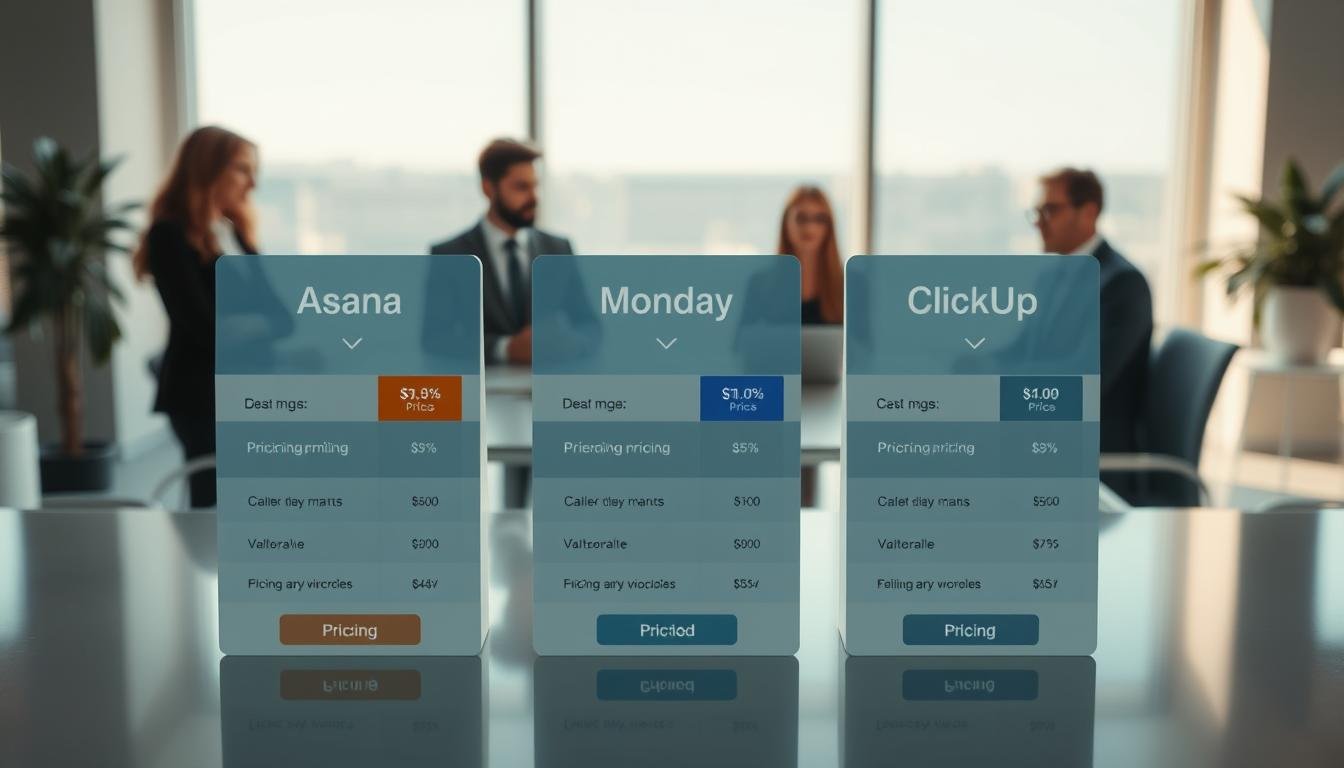
Asana vs Monday vs ClickUp pricing
Map must‑have capabilities to the first paid level that removes daily friction for your projects.
Plan tiers break down as free → mid‑tier → enterprise. Free options cover basic task and board work. Mid tiers add timelines, dashboards, and automations. Enterprise focuses on governance and support.
What each tier actually gives you
Quick summary of where key features live so you can pick the first plan that truly supports work:
- Entry / Free: Basic task, board, list views and limited guests. Good for solo users and tiny teams.
- Mid tier: Timelines, custom fields, integrations, and dashboards appear here. This is often the point teams get real project visibility.
- Advanced mid / Business: Portfolios, workload, goals, and stronger automations for cross‑project management and resource forecasting.
- Enterprise: SSO, roles & permissions, audit logs, and priority support for many users and sensitive data.
Note on automations and time tracking: Automation limits and the presence of native time tracking are common upgrade triggers. Teams needing billing, forecasting, or heavy compliance will reach for higher tiers.
Choose a plan that reduces manual work, improves visibility, and scales with your project portfolio.
Asana pricing breakdown: from free to enterprise
A clear tier map helps teams match features to real work without guessing.
Free plan: basic task and project management for small teams
The Free plan gives core tasks, lists, and boards for lightweight collaboration. Small groups get simple project management, basic comments, and guest access for quick work.
Premium: Timeline, custom fields, reporting dashboards
Premium is the common upgrade because Timeline brings schedule clarity. Custom fields standardize data across tasks, and reporting dashboards surface progress quickly.
Business: portfolios, workload, advanced reporting
Business adds Portfolios to manage multiple initiatives and Workload for capacity balancing. Advanced reporting helps leaders spot risks and rebalance work without opening each task.
Enterprise: security, compliance, priority support
Enterprise focuses on SSO, audit controls, compliance, and priority support for large organizations. These controls meet strict IT and legal requirements for many users and sensitive data.
“Pilot Premium to validate workflows, then scale to Business when you need cross‑project visibility.”
Note on time tracking: the platform supports time capture via integrations; some teams add partner apps for deeper time reporting.
Monday.com pricing breakdown: visual workflows at scale
Visual clarity and configurable boards make this tool a strong pick for teams that prioritize seeing progress fast.
Free / Basic: essentials for boards and collaboration
What it delivers: Core boards, color‑coded statuses, and simple task flows so small groups can organize work visually.
Good for users who need quick setup and lightweight collaboration without extra cost.
Standard: timelines, integrations, and dashboards
Why teams upgrade: Timelines add schedule visibility. Integrations sync data across apps. Dashboards give at‑a‑glance performance for managers.
Pro: automations, time tracking, advanced views
Marquee additions: No‑code automations reduce manual updates, native time tracking supports client billing, and advanced views help deeper analysis.
Dependencies and workload tools help plan handoffs and avoid bottlenecks as projects scale.
Enterprise: security, governance, advanced reporting
For larger organizations: Governance controls, SSO, and advanced reporting meet IT and compliance needs. This plan suits regulated teams and heavy management requirements.
- Strengths: visual flexibility and many view options, ideal for marketing and creative work.
- Considerations: a setup learning curve — invest in templates, naming rules, and a governance checklist to keep boards consistent.
- Tip: test automations in trial runs to estimate rule counts and rule runs before you choose a plan.
“Teams that invest in configuration usually see the most impact from visual workflows.”
ClickUp pricing breakdown: affordable and feature‑packed
Many teams pick a tool because it packs advanced views and native time tracking into affordable plans. This platform offers list, board, calendar, Gantt, and timeline views, plus built-in time tracking, docs, and whiteboards to reduce context switching.
Free Forever: Generous task structures and multiple views help small teams organize without immediate spend. It includes collaboration features that work for solo users and tiny groups.
Unlimited: The practical first paid plan. It adds more integrations, goals, and higher limits that matter as projects and users grow.
Business / Business Plus: Portfolios give cross‑project visibility. Advanced automation and granular permissions cut repetitive work and improve team management.
Enterprise: For organizations needing security, compliance, and premium support to meet internal policies.
- Built‑in time tracking helps analyze effort without third‑party apps.
- Agile tools (sprints, burndown, velocity) support engineering and product teams.
- Docs and whiteboards keep planning close to execution.
- Customization is powerful but can increase setup time—use templates and map folder structures early.
“Test performance on representative workspaces during trial to confirm responsiveness with real data.”
Free plans compared: what’s limited, what’s unlocked
Testing free accounts reveals which limits will bite once projects scale. All three vendors offer no‑cost tiers that cover core task management and basic collaboration. Use this phase to list which views and apps you rely on before upgrading.
Task, board, list, and calendar views across free tiers
Baseline views: Boards, lists, and calendar views are usually available on free plans. Advanced visuals like Gantt or timeline are often locked behind paid plans.
ClickUp’s free tier is notably generous with multiple view types. Other free tiers support basic boards and lists but limit advanced project views.
Storage, user caps, and collaboration limits
Free accounts commonly impose attachment size limits, total storage ceilings, or guest restrictions. That affects teams that share large design files or many media assets.
Automation runs, guest users, and folder limits can also cap how many projects and users contribute effectively.
Time tracking and dashboards availability
Time tracking: Native time tracking exists on the more generous free tier, while other tools reserve it for paid plans or require third‑party apps.
Dashboards: Reporting and multi‑project dashboards are typically pared back on free plans, reducing oversight for managers across projects and teams.
- Integration limits can restrict Slack, Google Drive, or GitHub syncs without upgrading.
- Free plans are ideal to trial workflows, but most growing teams hit constraints in automations, dashboards, and permissions.
- Document missing features during trials and run a small pilot group to stress test collaboration limits.
“Start small, record what’s missing, and design a migration path before you expand users.”
Which tool is cheapest for your team size and use case?
Cost matters, but the cheapest monthly fee rarely equals the best value for real work.
Freelancers and small teams: For solo professionals and tiny teams who need basic task tracking with minimal spend, choose lightweight options. ClickUp and Trello are strong picks here. ClickUp gives extra views and native time tracking on its generous free tier. Trello keeps things simple and low‑cost for Kanban style work.
Marketing and creative teams: Visual boards, integrations, and automations matter most. Select the plan that unlocks dashboards and no‑code automations so content calendars and campaigns run with fewer manual updates. That often means investing in a mid‑tier visual plan to save time overall.
Product, engineering, and agile teams: Agile features drive value. Teams that need sprints, burndown charts, and velocity tracking will find the best cost‑to‑feature mix with tools that include native agile views and time capture.
- ClickUp offers broad feature depth for startups that want docs, whiteboards, agile tools, and time tracking in one place.
- Choose the mid‑tier visual plan if automations and integrations are central to campaign delivery.
- Remember: the cheapest option becomes more expensive when automation limits or reporting gaps force upgrades.
Pilot one real project per option — delivery speed and clarity are better gauges of value than list price alone.
Features that drive price: views, automations, time tracking, and more
Features such as advanced views and smart automations often decide whether a team upgrades.
Advanced views — like Gantt, Timeline, and Workload — improve planning accuracy and capacity management. These views give a clearer picture of who is overloaded and when deadlines clash. They usually sit in mid or upper tiers because they require extra data processing and UI elements.
Boards, lists, Gantt, Timeline, and workload views
Boards and lists handle daily task management well. Gantt and Timeline add schedule clarity for multi‑phase work. Workload views shift focus from tasks to people, which helps balance effort across teams.
Automations and customization: when “no‑code” adds cost
No‑code automations cut repetitive updates and human error. Higher plans raise rule counts and complexity, so heavy automation needs mean higher fees.
Customization — custom fields, forms, and templates — locks in consistent processes. These items often unlock at paid tiers and reduce the cost of manual checks.
Native time tracking and reporting dashboards
Native time tracking links effort to billing and utilization. Integrated dashboards turn raw entries into actionable reports for on‑time delivery.
“Quantify automation value: hours saved per week × team size helps justify upgrades.”
Tools that bundle docs and whiteboards can replace extra subscriptions and lower total spend. Pilot critical workflows and then compare results to decide if the added features truly speed delivery or are just nice to have.
| Feature | Why it matters | Typical plan level |
|---|---|---|
| Gantt/Timeline | Improves schedule accuracy and dependencies | Mid |
| Workload view | Shows capacity across people and teams | Mid/High |
| Automations | Reduces manual updates; scales workflows | Mid/High |
| Native time tracking | Supports billing and utilization reporting | Mid (varies) |
| Cross‑project dashboards | Filterable, drill‑down reporting for managers | High |
For a quick next step, run a short pilot and compare plans to see which features move the needle for your team.
Total cost of ownership: add‑ons, integrations, and onboarding time
Total ownership costs go well past monthly invoices and into connectors, training, and admin time.
Plan for connectors and paid integrations. Many teams need Slack, Google Drive, Zoom, GitHub, Trello, or Zapier links. If native integrations fall short, paid connectors or an iPaaS add recurring fees.

Integrations and potential paid connectors
Map required apps to each platform early. Some integrations work only on higher tiers or need third‑party tools that bill separately.
Setup, training, and the learning curve cost
Estimate onboarding hours for admins and users. Configuration can be heavy—some platforms need more setup time, while others are quicker to adopt.
- Include internal training, SOP writing, and template creation as line items.
- Account for admin overhead: provisioning, permissions, and workspace maintenance as users grow.
- Factor in support SLAs and whether you need a dedicated customer success manager during rollout.
“Run load tests with real projects to spot performance slowdowns before broad rollout.”
| Cost area | What to measure | Typical impact |
|---|---|---|
| Integrations & connectors | Paid connectors, iPaaS, tier limits | Monthly/annual fees; data flow reliability |
| Onboarding & training | Admin hours, user training, SOPs | One‑time labor cost; affects ramp time |
| Admin & maintenance | User provisioning, backups, governance | Ongoing headcount or contractor cost |
| Support & SLAs | Response time, dedicated CSM, escalation | Budget for premium support on critical launches |
Next step: Create a TCO worksheet, map required integrations, and run a short pilot. For more guidance on comparing management options, read a practical face‑off of project management software choices here.
User experience and performance: how usability impacts ROI
Good usability turns tools into work done, not extra work to learn.
Clean interfaces shorten onboarding by surfacing common actions and reducing errors. A tidy layout helps a user complete tasks faster, which directly improves project management outcomes and saves time for managers and teams.
Day‑to‑day usability differs across platforms. One is known for a clean interface that helps new users get productive quickly. Another offers colorful, engaging boards that look great once configured. A third gives deep customization for power users but can feel heavy and report slower loads on large workspaces.
Performance matters. Large boards, heavy attachments, and complex automations can slow responsiveness. Optimize views, archive old projects, and limit automation rule counts to keep the interface snappy for every user.
Practical steps to protect ROI:
- Establish workspace conventions for naming, fields, and views so navigation stays consistent across projects.
- Test critical workflows on mobile to ensure essential actions mirror desktop efficiency for on‑the‑go users.
- Pilot with non‑technical users and managers to confirm the interface supports every role.
- Track adoption and completion time during pilots to quantify usability gains and on‑time delivery improvements.
Reduce context switching by embedding docs, comments, and files inside tasks. Visual dashboards and clear views boost stakeholder confidence and cut status meeting time.
“Revisit workspace design quarterly to remove clutter and keep performance high as you scale.”
| Area | Why it matters | Recommended action |
|---|---|---|
| Interface clarity | Faster onboarding; fewer errors | Use templates and minimalist views |
| Performance | Responsiveness affects daily work | Limit automations; archive large boards |
| Mobile parity | Field teams need quick actions | Test and train on mobile workflows |
| Governance | Consistency across projects | Set naming standards and field rules |
For a short pilot that measures both usability and business impact, see a practical guide on boosting adoption with focused workflows at boosting sales with innovative SaaS solutions.
Integrations and ecosystem: picking the right stack
Choose connections that move data, not people, so teammates spend time doing work, not hunting for updates.
Asana: communication‑first integrations like Slack, Google Drive, and Microsoft Teams keep conversations and files attached to tasks. These plug‑and‑play connections reduce context switching for users and speed collaboration.
Automation‑friendly connections
Monday: integrates with Zoom, Slack, Jira, Dropbox, and Zapier to push updates across systems. This makes it easy to orchestrate marketing campaigns and ops flows with low lift.
Developer‑centric ecosystem
ClickUp: links to GitHub, Google Calendar, Outlook, Trello, and Zapier. The platform also provides API docs for custom work, though advanced setups may need developer time.
Practical checklist:
- Inventory current apps and map must‑have connections to avoid hidden build costs.
- Test bi‑directional syncs and field mappings to keep data clean.
- Confirm SSO and provisioning match IT policies as users scale.
- Watch webhook limits and integration caps on lower plans.
- Document integration ownership and monitoring for quick fixes.
| Area | Why it matters | Typical impact |
|---|---|---|
| Plug‑and‑play apps | Quick setup; lowers admin time | Fast adoption |
| API & custom integrations | Supports unique workflows and data syncs | Developer time and maintenance |
| Rate limits & webhooks | Can throttle real‑time updates | May force plan upgrades |
| Identity & provisioning | Aligns with security and compliance | Reduces onboarding friction |
Scalability and support: growing from projects to portfolios
Scaling a handful of projects into a coordinated portfolio requires different controls and better visibility.
Portfolio‑level visibility and workload balancing let leaders see risk across many projects. Portfolios and workload views let managers shift assignments before deadlines slip. Advanced reporting turns raw activity into decision‑ready metrics for hiring and timelines.

Consider enterprise plans when you have many users, strict compliance needs, or cross‑department collaboration that needs granular roles and permissions. Enterprise tiers also add security, audit logs, and priority support or a dedicated success manager for complex rollouts.
Performance and data architecture matter as automations and projects grow. Large rule counts and heavy attachments can slow a platform. Plan for data export/import paths and staged migrations to avoid disrupting active work.
Best practices include creating an internal center of excellence to govern features, templates, and naming rules. Use workload and utilization data for proactive capacity planning. Schedule periodic platform reviews to confirm the plan still fits your scale.
“Priority support and a named success manager reduce risk during large migrations and change management.”
- Train at scale with role‑based onboarding, refreshers, and in‑app guides.
- Measure support responsiveness and resolution times as part of vendor evaluation.
- Document migration steps and test exports to minimize downtime.
| Area | Why it matters | Action |
|---|---|---|
| Portfolio visibility | Shows cross‑project status and risk | Enable portfolios and build executive dashboards |
| Workload balancing | Prevents overload and missed deadlines | Use workload views and reassign tasks proactively |
| Support & success | Speeds issue resolution during rollouts | Choose plans with priority support or a success manager |
| Performance | Large workspaces can slow down | Limit automations, archive old projects, and test scale |
Alternatives context: where Trello and all‑in‑one tools fit
Simple boards can carry a team a long way, but growth exposes where deeper ops belong.
Trello shines for basic visual workflows. Its boards, lists, and cards map well to content calendars, design tickets, and lightweight project tracking.
The free plan is generous for freelancers and small groups. You get multiple boards, unlimited cards, and many users without immediate spend.
That ease comes with limits. Trello lacks built-in financials, deep reporting, and forecasting. Agencies and services teams often outgrow it when they need profitability and integrated time/budget controls.
Trello for simple Kanban and visual task management
Use Trello when you want minimal setup, fast adoption, and a low learning curve. It’s ideal for marketing teams and small project work where visual clarity beats complexity.
- Best for: quick boards, editorial calendars, and small project tracking.
- Watch for: limited reporting and no native budgeting tools.
- Tip: plan data portability if you expect to migrate later.
All-in-one operations tools when you need financials
All-in-one platforms such as Productive combine project management with budgeting, forecasting, invoicing, and resource planning.
These options reduce tool sprawl by unifying collaboration, scheduling, and financial controls. They require more setup and governance but deliver profitability insights that simple boards cannot.
- Choose all-in-one when you need integrated billing, utilization reports, and forecasting.
- Expect a longer rollout: richer features mean more configuration and training.
- Balance the trade-off: faster learning vs. deeper capability based on your business goals.
“Start with Trello for early-stage teams and plan a clear transition path when multi-project reporting or financials become critical.”
How to choose: a friendly step‑by‑step decision flow
Capture the exact work you need the tool to manage before you compare plans. Start with clear information about recurring tasks, approvals, and handoffs so you test real scenarios, not theoretical features.
Record needs and must‑have features
Document use cases — views, automations, time tracking, reporting, and integrations. Write one‑page summaries for each major workflow.
Include who needs access and which templates matter for repeatable work.
Match plans to budget and team size
Map each plan to headcount and expected growth. Note common upgrade triggers like automation limits, dashboards, and workload views.
This makes cost comparisons practical and avoids surprise upgrades later.
Trial, validate workflows, and project views
Build trial templates that mirror real projects. Validate list, board, and timeline views with the people who will use them every day.
- Define success metrics: fewer manual updates and clearer visibility.
- Test integrations that matter most and collect feedback across teams.
- Calculate total cost including setup and training, then pick the option that delivers the most value per dollar.
“Make the final selection from pilot data and a clear plan for adoption and governance.”
Conclusion
Choose the tool that cuts manual work and supports your team’s real routines. Pick the platform that matches your highest priorities—automations, reporting, or portfolio oversight—and test those features under real project load.
Short guide: Asana shines for timeline and portfolio management; Monday excels with visual boards and automations; ClickUp packs broad features, agile tools, and built‑in time tracking at strong value. Use trial data to confirm interface fit, integrations, and performance.
Remember: total cost includes onboarding, training, and admin. Document templates, naming rules, and ownership so your management software scales. Start a focused pilot, measure delivery time and collaboration quality, then pick the plan that lets your teams do better work with fewer manual steps.