

Are you having trouble managing your projects? With so many Microsoft tools out there, picking the right one can be tough.
Microsoft has a variety of project management tools, like Excel, Project, Planner, and Teams. Each has its own strengths and weaknesses.
The tool you choose depends on your project’s needs. Whether you’re an experienced project manager or new to the field, knowing what each tool offers is key.
Key Takeaways
- Understand the unique features of Microsoft project management tools.
- Compare Excel, Project, Planner, and Teams for your project needs.
- Learn how to choose the right tool for efficient project management.
- Discover the benefits and limitations of each Microsoft tool.
- Make an informed decision for your project’s success.
Understanding Project Management Tools
Choosing the right project management tool is key to success. These tools help teams stay organized and complete projects on time.
Importance of Using Project Management Software
Project management software is vital for project success. It lets managers plan, organize, and control projects. It also helps in communicating with team members and stakeholders. Microsoft Planner is great for small teams, with a Kanban board for task management.
Using this software boosts productivity and time management. It also improves teamwork. It tracks progress, finds problems, and guides decision-making.
Common Features Across Tools
Most project management tools have similar features. These include managing tasks, scheduling, sharing files, and tracking progress. Task management helps teams handle tasks well. Scheduling is for planning project timelines.
- Task assignment and tracking
- Project scheduling
- File sharing and collaboration
- Progress tracking and reporting
Key Differences between Tools
Though tools share features, they differ in complexity, scalability, and integration. For example, Microsoft Project is for complex projects. Microsoft Teams is for team communication and collaboration.
| Tool | Primary Use | Key Features |
|---|---|---|
| Microsoft Excel | Project Planning | Budgeting, Scheduling |
| Microsoft Project | Complex Project Management | Gantt Charts, Resource Allocation |
| Microsoft Planner | Task Management | Kanban Boards, Task Assignment |
| Microsoft Teams | Team Collaboration | Chat, File Sharing, Integration with Other Tools |
Overview of Microsoft Excel for Project Management
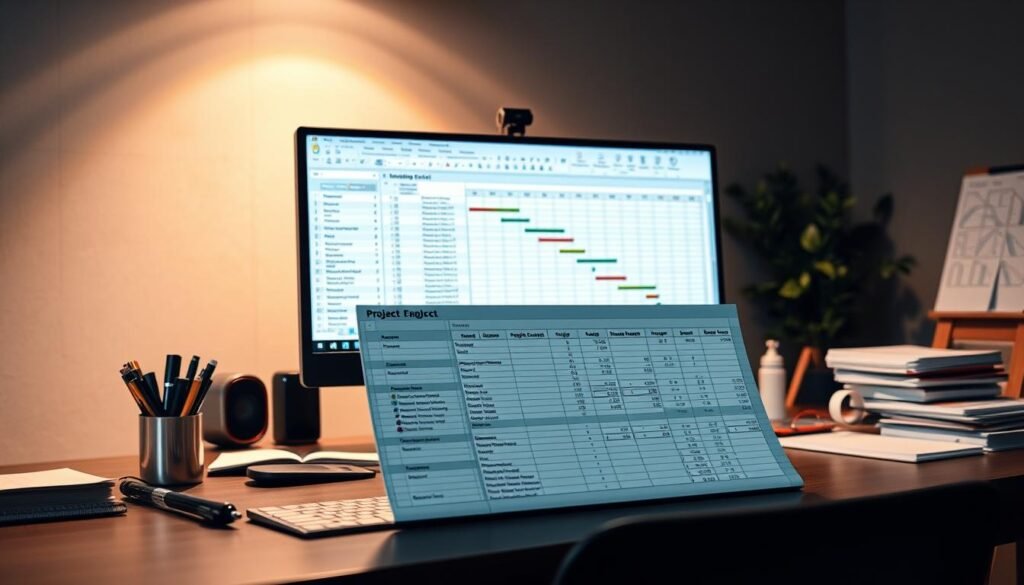
Excel is a top pick for project management, despite some drawbacks. It’s known for its strong reporting and data analysis. This makes it great for project managers who need to track and analyze data.
Advantages of Excel for Project Management
Excel shines in data analysis. It lets project managers build complex spreadsheets and track progress. Plus, its wide use means many know how to use it, making it easy to learn.
Key Benefits:
- Robust data analysis and reporting capabilities
- Familiarity and widespread use among professionals
- Flexibility in creating custom spreadsheets
Limitations of Using Excel
Excel has big downsides for project management. One big issue is how easy it is to mess up data and formulas. Also, managing tasks across many spreadsheets is hard. And, it’s not great for using on mobile devices.
Key Limitations:
- Ease of overriding data and formulas
- Difficulty in tracking tasks across multiple spreadsheets
- Limited mobile device support
| Feature | Excel | MS Project | Planner | Teams |
|---|---|---|---|---|
| Data Analysis | Robust | Limited | Basic | None |
| Project Tracking | Cumbersome | Robust | Simple | None |
| Collaboration | Limited | Limited | Basic | Robust |
If you’re looking for alternatives, many free SaaS tools can help with project management tasks.
Microsoft Project: The Complete Solution
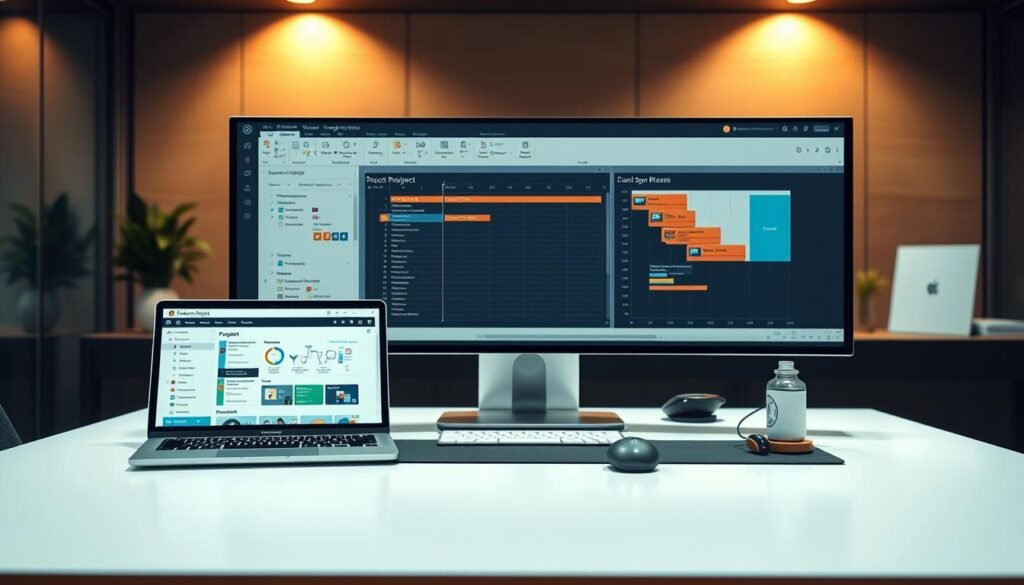
Big projects need strong tools, and Microsoft Project is it. It’s a top-notch project management tool for big and complex projects. It has lots of features for experienced project managers.
Key Features of Microsoft Project
Microsoft Project has many key features for managing big projects. Some of these are:
- Gantt Charts: See project timelines and links easily.
- Resource Management: Manage resources well across projects.
- Financial Management: Keep track of costs and stay on budget.
These features help project managers see their projects clearly. This makes it easier to make smart choices.
When to Use Microsoft Project
Microsoft Project is great for big, complex projects. It’s perfect for projects with many people involved, complex links, or detailed resource and money management.
Think about your project’s size and complexity when deciding when to use MS Project Online. Also, consider if you need to work together with other Microsoft tools.
In a project management tools comparison, Microsoft Project shines. It’s great for managing complex projects, making it a key tool for project managers.
Microsoft Planner: Simplicity Meets Functionality
Microsoft Planner is perfect for teams needing a simple project management tool. It makes organizing tasks, tracking progress, and team collaboration easy.

Benefits of Using Microsoft Planner
Microsoft Planner makes task management easy for project teams. Its main benefits are:
- Ease of Use: Its user-friendly interface makes it simple for team members to use.
- Simplicity: Planner focuses on task management, making it easy to organize and track tasks.
- Integration with Microsoft Teams: It works well with Microsoft Teams, improving team collaboration and communication. The Microsoft Tech Community blog highlights how it combines tasks, chats, and files in one place.
Microsoft says Planner comes with most Microsoft 365 licenses. This makes it easy for many organizations to use.
“Microsoft Planner is a simple task management system that helps project teams organize and track tasks, share files, and collaborate using chat.”
Ideal Scenarios for Planner Usage
Microsoft Planner is great for specific situations:
| Scenario | Description |
|---|---|
| Small Teams | Planner is perfect for small teams needing a basic task management tool. |
| Remote Work | Its connection with Microsoft Teams makes Planner ideal for remote teams that need to work together. |
| Simple Projects | For simple projects, Planner offers a simple yet effective solution. |
Knowing when to use Microsoft Planner helps teams decide if it fits their project management needs.
Microsoft Teams: Collaboration at Its Best
Microsoft Teams changes how teams work together. It’s a chat-based space where everyone can talk, share files, and work on projects together right away.
Features that Enhance Team Collaboration
Microsoft Teams lets teams create channels for different topics or projects. This keeps chats organized and focused. It also makes sharing files and working on documents easy right in the platform. This makes work more efficient by cutting down on switching between apps.
Another big plus is the integration with many Microsoft and third-party apps. For example, teams can use the Planner app in Teams to manage tasks and see how projects are doing. This makes workflows smoother and boosts team performance.
Integrating Teams with Other Microsoft Tools
Microsoft Teams is part of the Microsoft 365 suite, making it easy to connect with other Microsoft tools like Excel, Project, and Planner. For instance, you can link Planner with Teams to assign tasks and track project progress right in Teams. This is key for boosting project management skills without leaving Teams.
| Tool | Integration Benefit |
|---|---|
| Microsoft Planner | Task management and assignment within Teams |
| Microsoft Project | Advanced project management features |
| Microsoft Excel | Real-time data analysis and reporting |
By linking these tools, teams can use each app’s best features for a full project management solution. This not only makes teamwork better but also boosts team productivity overall.
Comparing Functionality: Which Tool Fits Your Needs?
Choosing a project management tool depends on several things. These include project complexity, team size and structure, and budget considerations. Knowing these factors helps pick the right Microsoft tool for your project.
Evaluating Project Complexity
Project complexity is key in picking a tool. Simple tasks might need basic tools, while complex projects need advanced features. For example, Microsoft Project is great for complex projects, with features like Gantt charts and resource allocation.
For simpler projects, Microsoft Planner is a good choice. It has a simple and easy-to-use interface. Knowing your project’s complexity helps choose the right tool.
Team Size and Structure
The size and structure of your team matter too. Larger teams need tools with strong collaboration features, like Microsoft Teams. It works well with other Microsoft apps, making team communication easy.
Smaller teams might prefer Microsoft Excel or Planner. These tools are simpler and require less setup. Think about your team’s size and structure when picking a tool.
Budget Considerations
Budget is also important when choosing a tool. Microsoft tools vary in price, and you should pick one that fits your budget. For example, Microsoft Project is pricier but offers advanced features for complex projects.
Microsoft Planner, on the other hand, is often included in Microsoft 365 subscriptions. It’s a budget-friendly option for smaller projects or teams. Evaluating your budget helps make the right choice.
User Experience: Interfaces and Ease of Use
How easy a project management tool is to use matters a lot. It affects how well team members can work with it. The tool’s interface, how easy it is to learn, and how it feels to use are all important.
Navigating Excel vs. Project vs. Planner vs. Teams
Each Microsoft tool has its own special design. Microsoft Excel is known to many and is great for working with data and simple projects. On the other hand, Microsoft Project has a more detailed interface for complex projects.
Microsoft Planner is simple and easy to use, perfect for managing tasks. Microsoft Teams is mainly for teamwork but also has project management tools. It can be a bit busy depending on how it’s set up.
Choosing a tool depends on what you need for your project. For simple tasks, Excel might be enough. But for more complex projects, you might need Microsoft Project’s advanced features.
Learning Curve for Each Tool
The learning curve for each tool is different. Excel is easy for those who already know how to use spreadsheets. Microsoft Project takes more time and training because of its many features.
Microsoft Planner is easy to start with, making it great for beginners. Microsoft Teams’ learning curve depends on how it’s used in a team.
Key Takeaways:
- Excel is great for simple projects and those familiar with spreadsheets.
- Microsoft Project is ideal for complex projects requiring detailed planning and resource allocation.
- Microsoft Planner is perfect for teams looking for a straightforward task management solution.
- Microsoft Teams excels in team collaboration, with project management features integrated through its various tabs and channels.
The right tool depends on the project’s needs, the team’s size, and the budget. Knowing how each tool works helps teams choose the best one for their success.
Integration Capabilities of Each Tool
Microsoft’s project management tools are known for seamless integration. This makes teams work more efficiently. The tools are designed to work together, providing a complete solution for managing projects.
How Tools Work Together
Microsoft Project, Planner, and Teams are connected, making workflow smoother. For example, integrating Planner with Teams lets teams manage tasks and projects in one place. This makes it easier to see what needs to be done and simplifies task management.
Microsoft Project can also connect with other Microsoft tools like SharePoint and Teams. This creates a strong project management system. It helps with detailed planning, allocating resources, and tracking progress in one place.
Best Practices for Integration
To get the most out of integration, following best practices is key. Here are some important tips:
- Make sure all team members know how to use the integrated tools. This helps avoid confusion and boosts productivity.
- Use the same names and tags across tools to keep things clear.
- Check and update your integration setup regularly to match changing project needs.
A comparison of Microsoft’s project management tools integration is shown in the table below:
| Tool | Integration Capabilities | Key Benefits |
|---|---|---|
| Microsoft Project | Integrates with SharePoint, Teams | Detailed project planning, resource allocation |
| Microsoft Planner | Integrates with Teams, SharePoint | Task management, team collaboration |
| Microsoft Teams | Integrates with Project, Planner, SharePoint | Centralized collaboration, file sharing |
Knowing how to integrate these tools well can improve project management. This leads to better productivity and project results.
Making the Final Decision: Which Tool is Right for You?
Choosing the right Microsoft project management tool is key. It depends on project complexity, team size, and budget. Think about your project management style and how it fits with your business goals.
Project Management Style Assessment
Look at your team’s workflow and what features are must-haves for success. For smaller teams, Microsoft Planner is great. It has a simple, easy-to-use interface for managing tasks.
Aligning with Business Objectives
Think about how the tool will help meet your business goals. Microsoft Project is best for complex projects needing detailed reports and resource management. Microsoft Teams is top for team collaboration. By comparing these tools, you can choose one that supports your business goals.
In the end, the best tool for your team will depend on a detailed comparison. You need to understand your specific needs well.