


Are you tired of making the same presentations over and over? Imagine being able to link your slides across presentations, saving time and keeping things consistent.
Linking slides in PowerPoint makes your presentations more engaging. You can easily move between different parts of your presentation or even switch between presentations.
This trick is great for big presentations that need lots of updates or share the same content. It helps you improve your presentation skills and give your audience a better experience.
Key Takeaways
- Learn how to link slides across different presentations.
- Discover the benefits of using linked slides.
- Understand how to embed linked slides.
- Improve your presentation skills with dynamic content.
- Enhance audience engagement with interactive presentations.
Understanding PowerPoint and Google Slides
Choosing between PowerPoint and Google Slides depends on knowing their main features. Both are great for making presentations, but they serve different needs. They each have unique benefits.
Key Features of PowerPoint
PowerPoint is known for its wide range of tools for detailed presentations. Its key features include:
- Advanced animation and transition effects
- Extensive template library
- Support for embedding multimedia elements
- Robust collaboration features, including commenting and tracking changes
These features make PowerPoint a top pick for those who want detailed control over their presentations.
Key Features of Google Slides
Google Slides stands out for its simplicity and teamwork features. Its key features are:
- Seamless real-time collaboration
- Automatic saving and revision history
- Easy sharing and commenting
- Integration with other Google Workspace tools
Google Slides is best for those who value teamwork and simplicity.
Comparing User Experiences
The user experience is different between PowerPoint and Google Slides. PowerPoint has a lot of features, which can be too much for beginners. Google Slides, on the other hand, is easy to use and works well for everyone.
| Feature | PowerPoint | Google Slides |
|---|---|---|
| Collaboration | Robust, with commenting and change tracking | Real-time collaboration, commenting |
| Templates | Extensive library, highly customizable | Simpler templates, less customizable |
| Multimedia Support | Advanced support for multimedia elements | Basic support, with limitations |
Knowing these differences helps you choose the right tool for your needs.
How to Create Slides in PowerPoint
To make a great presentation, you need slides that look good and tell your story well. PowerPoint can help you do this. Making slides that grab attention is key to a good presentation. PowerPoint has tools to make this easier.
Steps to Design Engaging Slides
To make slides that grab attention, follow these steps:
- Define Your Objective: Know what you want to say.
- Choose Relevant Content: Pick stuff that fits your message and speaks to your audience.
- Design Your Slides: Use PowerPoint’s tools to make your slides look great.
Using Templates and Themes
Templates and themes can make designing easier. PowerPoint has lots of templates and themes to help you make slides that look professional fast.
- Pre-designed Templates: Use these to save time and keep things consistent.
- Customizable Themes: Pick themes that fit your presentation’s style or brand.
Adding Multimedia Elements
Adding images, videos, and audio can make your slides more interesting and engaging.
| Multimedia Element | Purpose | Tips for Use |
|---|---|---|
| Images | To show something or add interest | Choose high-quality, fitting images. |
| Videos | To share more info or context | Keep videos short and on point. |
| Audio | To add music or voiceovers | Use audio wisely to keep your audience focused. |
By following these steps and using PowerPoint’s tools, you can make slides that improve your presentation. Knowing how to update slides across presentations automatically can also help. It makes sure your slides look the same in all your presentations.
Linking Presentations: Why It Matters
Linking presentations is a key feature that boosts teamwork. It lets team members work on different parts of a presentation at the same time. This way, they can make more detailed and interesting presentations.
Enhancing Collaboration
Team members can link their slides to work on different parts of a presentation. This reuse slides feature explained helps each team member focus on their section. They don’t have to worry about doing the same work or dealing with version control problems.
“Collaboration is the key to innovation. By linking presentations, we can foster a more cohesive and productive team environment.”
Let’s say a team is working on a big project presentation. By linking their slides, they can:
- Work on different sections at the same time
- Share resources and feedback easily
- Keep branding and formatting consistent
Improving Workflow Efficiency
Linking presentations makes workflow smoother. It connects relevant slides, saving time. Teams don’t have to search through many presentations or look for specific info.
For example, a marketing team can link their campaign slides to a main presentation. This way, everyone has the latest data and visuals. It saves time and prevents using old information.
Keeping Content Up-to-Date
Linking presentations also helps keep content fresh. When a linked slide is updated, the change is seen across the presentation.
| Benefits | Description |
|---|---|
| Automatic Updates | Changes to linked slides are updated everywhere in the presentation. |
| Consistency | Linked slides keep the presentation looking and feeling the same. |
| Reduced Errors | Less manual updating means fewer mistakes. |
Understanding the value of linking presentations helps teams use their software better. It improves teamwork, workflow, and keeps content current.
Setting Up Your Slides for Linking
To embed linked slides in PowerPoint effectively, preparation is key. This involves organizing your slide decks, choosing the right format, and connecting relevant content.
Organizing Your Slide Decks
A well-organized slide deck is key for linking success. Begin by grouping your slides into sections or topics. This makes linking slides across presentations easier.
Use a consistent naming system for your slides and presentations. This makes linking slides quick and ensures links stay correct when sharing or exporting.

Choosing the Right Format
PowerPoint supports many file formats, but not all are good for linking. The .pptx format is best, as it has the latest features and works with most versions.
When saving, think about other users’ PowerPoint versions. Saving in .ppt is more compatible with older versions but might miss some advanced features.
| File Format | Compatibility | Features Supported |
|---|---|---|
| .pptx | Latest PowerPoint versions | Advanced features |
| .ppt | Older PowerPoint versions | Limited features |
| Universal | No linking supported |
Connecting Relevant Content
Linking slides is more than just connecting them. It’s about creating a story or flow that boosts the presentation’s impact. Find the main messages or themes in your presentations and link slides that support them.
Use descriptive text for hyperlinks. This makes it clear where the link goes. It helps the audience understand the link’s context and relevance.
Methods for Linking Slides
PowerPoint’s slide linking feature is a big deal for making presentations better. It lets you connect slides, work better with others, and make your work easier. Let’s look at how to link slides in PowerPoint.
Hyperlinking within PowerPoint
Hyperlinking within PowerPoint is easy. It lets you link slides for smooth navigation. To do this, check out this guide. It makes your presentation more interactive and fun for your audience.
Using Action Buttons
Action buttons are great for linking slides too. You can make them link to other slides, websites, or emails. They make it easy for your audience to follow your presentation. Just add the button, choose the action, and you’re set.
Embedding Slides from Other Presentations
Embedding slides from other presentations is very useful. It lets you use slides from other presentations in yours. This saves time and effort. Use PowerPoint’s “Reuse Slides” pane to do this easily.
Using these methods makes your presentation more engaging. It links important information across slides and presentations. This makes your work better and your presentation more enjoyable for viewers.
Sharing and Exporting Linked Slides
Sharing and exporting linked slides need careful planning. This is true whether you’re working with colleagues or presenting to a large group. Knowing the best ways to share and export is key.
Best Practices for Sharing PowerPoint
When you share PowerPoint presentations with linked slides, make sure all linked content is included. You can do this by packaging the presentation with all linked files. To do this, go to File > Save As, and then select Package Presentation for CD.
This feature bundles all linked files and slides into one package. This makes sharing easier and keeps links intact.
Also, check if the recipient has the right version of PowerPoint. This avoids problems with linked slides. For more tips on linking slides in PowerPoint, check out this guide on how to add internal slide links in.
| Sharing Method | Description | Benefits |
|---|---|---|
| Package Presentation for CD | Bundles presentation and linked files into a single package | EASY sharing, maintains links |
| Email Attachment | Sends presentation via email | Quick, straightforward |
| Cloud Storage | Shares via cloud services like OneDrive or Dropbox | Accessible, collaborative |
Exporting to Google Slides
Exporting your PowerPoint to Google Slides can help with teamwork, even if others don’t use PowerPoint. First, upload your PowerPoint file to Google Drive. Then, right-click and select Open with Google Slides.
Google Slides is great for teamwork, but some advanced PowerPoint features might not work as well.
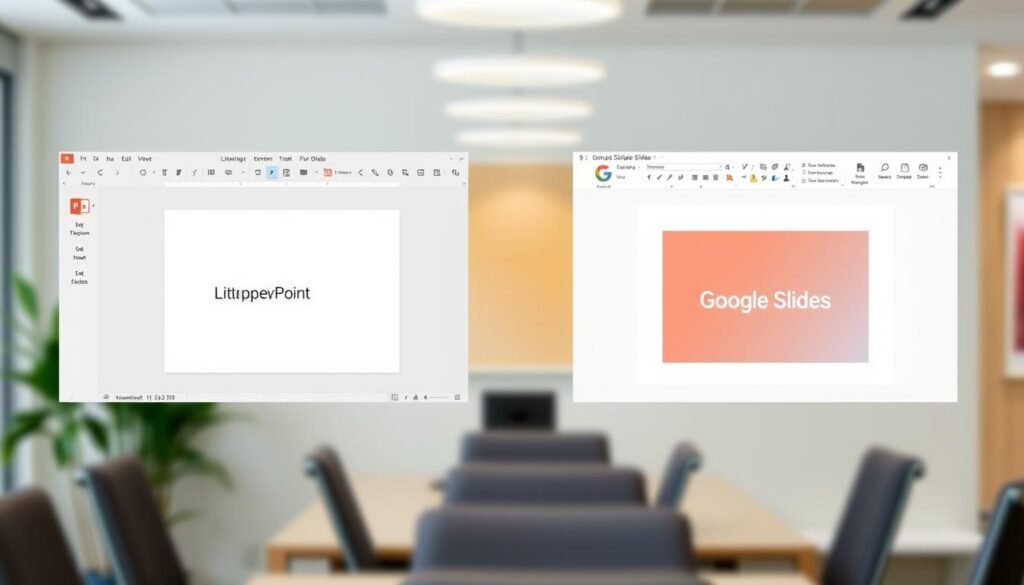
When you export to Google Slides, check the presentation for any lost links or formatting issues. Google Slides might not support all PowerPoint features. You might need to make some manual changes.
Maintaining Links After Conversion
Keeping links working after converting from PowerPoint to Google Slides can be tough. This is because the two platforms handle hyperlinks differently. After exporting, check each link to make sure it goes to the right place.
In some cases, you’ll need to re-establish links in Google Slides. To avoid problems, keep your links simple and don’t use complex structures. Testing your links before and after conversion can save time and make the transition smoother.
Troubleshooting Common Issues
Linking slides can be great, but problems can pop up. Knowing how to fix these issues is key for a smooth presentation.
Link Breaks and Solutions
Link breaks between slides can be really annoying. They often happen when files move or change.
- Keep all linked files in the same spot or use the same path.
- Pick relative links over absolute ones whenever you can.
- Always check and update your links, mainly after big changes or file moves.
Formatting Problems
Formatting can get messy when slides are linked or embedded. This usually comes from different templates or layouts.
- Make sure all your slides use the same template and layout.
- Stick to the same font styles and sizes for a unified look.
- Test your slides in various modes to spot and fix any formatting problems.
Compatibility Concerns
When using PowerPoint and Google Slides together, compatibility can be a problem. This is because some features or formats don’t work on both platforms.
| Issue | PowerPoint | Google Slides | Solution |
|---|---|---|---|
| File Format | .pptx | .pptx, .odp, .pdf | Save in a format like .pptx for Google Slides. |
| Advanced Features | Has complex animations and transitions. | Limited support for complex animations. | Avoid complex animations in shared slides. |
| Collaboration | Real-time editing with Office 365. | Real-time collaboration built-in. | Pick the best platform for your collaboration needs. |
By tackling these common problems and using the right fixes, you can make linking slides work better. This makes your workflow smoother and more efficient.
Best Practices for Presentation Design
Creating an effective presentation is key to engaging your audience. It helps you share your message clearly. A well-designed presentation boosts your professional image and makes your content stick in people’s minds.
Consistent Branding
Keeping your branding consistent is essential for a professional look. Use the same fonts, colors, and logos on every slide.
- Stick to your company’s color palette for a unified look.
- Choose fonts that match your brand’s style guide.
- Put your logo on each slide, in the same spot.
Effective Use of Colors and Fonts
The right colors and fonts can make your presentation more readable and engaging. Choose colors that contrast well with the background so your text stands out.
- Stick to 3-4 main colors to keep things consistent.
- Use different font sizes for headings and body text.
- Avoid fonts that are too fancy or hard to read.
Tips for Visual Impact
To grab your audience’s attention, add visual elements like images, charts, and videos. Visual content helps explain complex ideas and keeps people interested.
- Use high-quality images that fit your content.
- Include charts and graphs to clearly show data.
- Use videos or animations to add excitement.
- When you embed linked slides in PowerPoint, make sure they’re up-to-date and relevant.

Collaboration Tips for Team Presentations
Working on team presentations needs teamwork and the right tools. PowerPoint and Google Slides can help a lot. They make sure everyone works together well to create a great presentation.
PowerPoint and Google Slides have features that help teams work better. Here are some tips for team presentations.
Using Comments and Feedback
Comments and feedback are key for teamwork in presentations. Both PowerPoint and Google Slides let you leave comments on slides. This makes it easy to talk about changes and ideas.
PowerPoint has a “Comments” feature in the “Review” tab. It lets team members give feedback and discuss changes in the presentation.
Google Slides also has a commenting feature. You can find it in the “Insert” menu. It helps team members give feedback and discuss ideas in real-time.
Tracking Changes in PowerPoint
PowerPoint’s “Track Changes” feature is very useful for team work. It shows who made what changes. This makes it easier to review and finish the presentation.
To use “Track Changes” in PowerPoint, go to the “Review” tab. Click on “Track Changes” to start. It keeps a record of all changes, making it clear and easy to review.
For more on working together in PowerPoint, check out this guide on collaborative work in PowerPoint.
Coordinating With Google Slides Users
When working with Google Slides users, coordination is key. Google Slides makes it easy for many to work on a presentation at the same time.
To work together in Google Slides, share the presentation by clicking “Share” and entering email addresses. Then, you can all work together, using comments to talk about changes and ideas.
| Feature | PowerPoint | Google Slides |
|---|---|---|
| Comments | Accessible via the “Review” tab | Accessible via the “Insert” menu |
| Track Changes | Available under the “Review” tab | Real-time collaboration allows for implicit tracking |
| Real-time Collaboration | Limited real-time collaboration | Robust real-time collaboration capabilities |
Using these features in PowerPoint and Google Slides helps teams work better together. This ensures presentations are well-made, cohesive, and impactful.
Additional Resources for PowerPoint Users
To improve your PowerPoint skills, check out these resources. Whether you want to enhance your presentation design or automate slide updates, there’s something for you.
Online Tutorials and Courses
Online tutorials and courses are great for learning new skills or refreshing old ones. Sites like Udemy, Coursera, and LinkedIn Learning have many PowerPoint courses. They cover everything from basics to advanced features.
These courses often focus on presentation design, animation, and data visualization. Spending time on these tutorials can greatly improve your presentation skills. You’ll learn how to update slides across different presentations.
Helpful Blogs and Forums
Blogs and forums are also great for PowerPoint and presentation design. PowerPoint Magazine and the Microsoft PowerPoint Community forum are full of useful tips and solutions. They’re perfect for troubleshooting and keeping up with new features.
Joining these communities can inspire your presentations and keep you updated on best practices. You can learn from others and share your own knowledge. It’s a great way to grow and improve together.
Official Documentation
If you prefer direct information, Microsoft’s official PowerPoint documentation is a must-see. It covers everything from basic to advanced features. You’ll find detailed explanations and step-by-step guides.
Using the official documentation helps you understand PowerPoint’s full capabilities. It’s great for learning how to automate tasks and update slides across presentations.
Future of Presentation Software
The future of presentation software is set for big changes. These changes come from new tech and what users want. New trends in presentation design will change how we make and share presentations.
Emerging Trends in Presentation Design
Artificial Intelligence (AI) and Virtual Reality (VR) are key trends. AI will help design presentations by suggesting layouts and visuals. VR will make presentations more immersive and interactive.
Collaboration tools are also becoming more important. These tools include real-time comments, @mentions, and change tracking. They make it easier for teams to work on presentations together.
The Rise of Hybrid Presentations
Hybrid presentations are gaining popularity. They mix in-person and virtual elements. This trend offers flexibility and inclusivity, reaching both local and remote audiences.
Software is adapting to support hybrid presentations. It includes live streaming and interactive tools for remote viewers.
Predictions for PowerPoint and Google Slides
PowerPoint and Google Slides will keep innovating. They will add AI, VR, and collaboration features. PowerPoint will focus on AI-driven design. Google Slides will improve real-time collaboration.
| Feature | PowerPoint | Google Slides |
|---|---|---|
| AI-driven Design | Enhanced design suggestions | Basic design templates |
| Collaboration Tools | Real-time commenting | Real-time editing and commenting |
| Virtual Reality Integration | Expected in future updates | Early adoption phase |
As presentation software evolves, we’ll see more interactive and immersive experiences. Knowing these trends helps users stay updated. They can use the latest features to improve their presentations.
Conclusion: Elevating Your Presentation Game
Linking slides across presentations is a game-changer. It makes your presentations better by improving teamwork, saving time, and keeping your audience interested.
Key Takeaways
Embedding linked slides in PowerPoint makes moving between presentations smooth. This, combined with Google Slides’ flexibility, gives you a powerful tool for making engaging presentations.
Experimenting with New Techniques
Linking slides in PowerPoint and Google Slides can make your presentations stand out. Try out different methods and features to see what works best for you. This way, you’ll create presentations that grab your audience’s attention.
Unlocking Presentation Possibilities
Using the tips from this article, you’re ready to make presentations that engage and interact with your audience. Whether you’re using PowerPoint or Google Slides, the possibilities are vast.